Image to image AI generator: how it works, with a real example
An image to image AI generator turns a photo you have into a new version. See one room edited twice, the exact prompts, and when to use each method.
An image to image AI generator takes a picture you already have, plus a few words, and makes a new version of it: the same room in a different light, the same scene in a new style, the same layout with new furniture. You choose how much changes, and everything you don’t mention should stay where it was.
This guide shows a real example: one licensed stock photo of a living room, edited twice with AI, a small change and a big one, with the exact prompts. It also covers the three ways to work from an image, how to word a prompt so the right things stay put, and what you can do with the results.
What is an image to image AI generator?
A text-to-image generator starts from nothing but your words. An image-to-image generator starts from a picture, so the layout, the angle and the main shapes are already decided before the AI adds anything.
Under the hood, most of these tools add a controlled amount of noise to your picture and then rebuild it while following your prompt. A little noise means a light touch, like a new color or new light. A lot of noise means the AI is free to reinvent more of the scene. The open-source Diffusers documentation on image-to-image calls this the “strength” setting: the higher it is, the less the result looks like the original.
Many consumer tools hide that slider and read it from your words instead. “Make the light warmer” is a small change. “Restyle the room as mid-century modern” is a big one. That’s how Edit by prompt works in our editor.
What does image to image AI actually do to a photo?
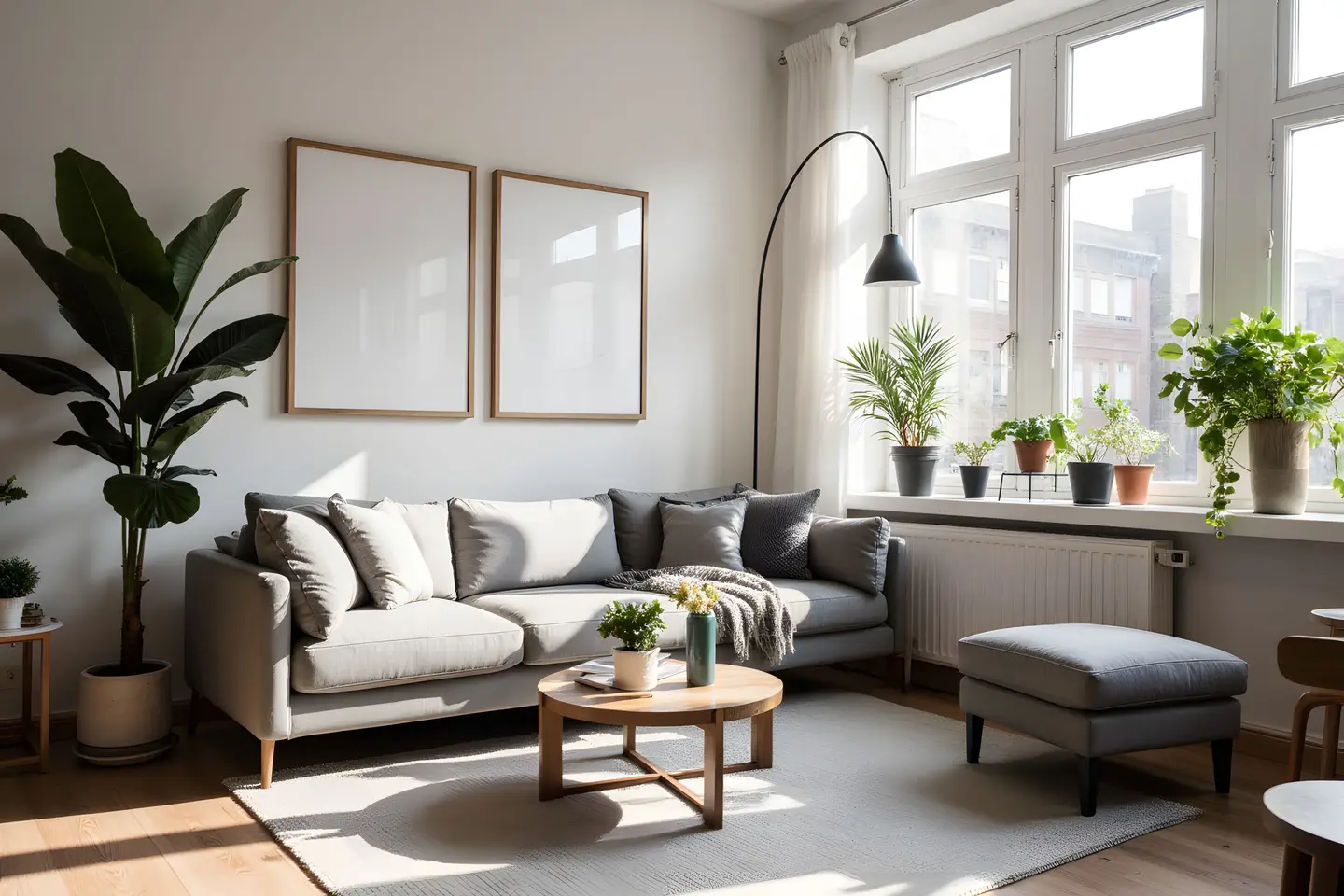
Here’s our starting point, a licensed stock photo from our catalog, shown as it came, unedited.
A small change: new light, same room
We opened it in the free photo editor and typed this into Edit by prompt:
Make it a rainy evening: a dark blue sky outside, raindrops on the window glass, the floor lamp switched on with a warm glow, and soft warm lamplight on the sofa. Keep the sofa, the cushions, the plants, the picture frames, the coffee table and the camera angle exactly as they are.
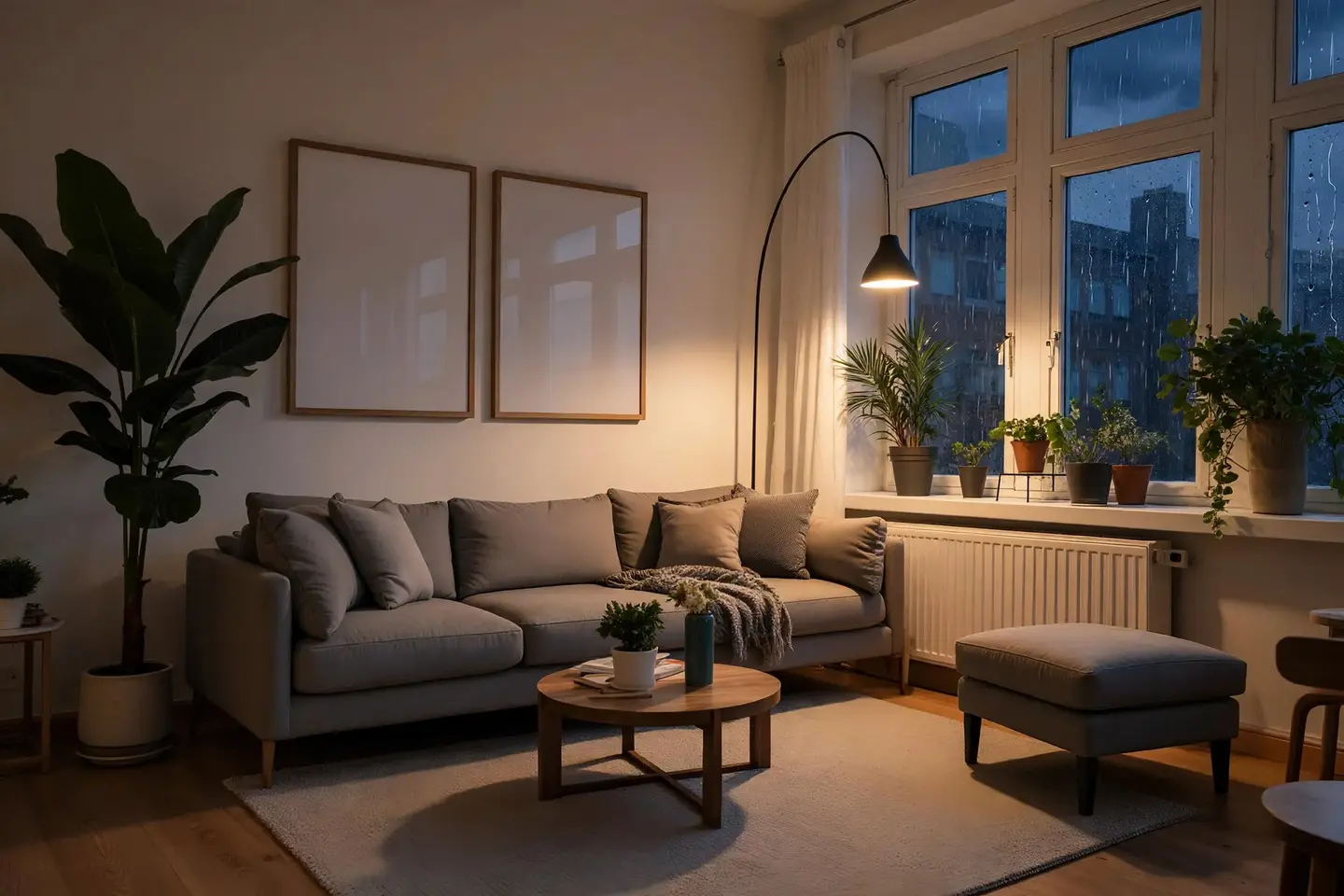
The furniture, the plants and the frames stayed. The time of day, the weather and the light changed. This is the low end of the scale, and it’s the most useful edit for most people: one photo, many moods.
A big change: new style, same layout
Then we went back to the original and asked for much more:
Restyle this room as a warm mid-century living room: a rust-orange velvet sofa, a walnut coffee table, a patterned wool rug, and simple abstract prints in the two picture frames. Keep the windows, the walls, the floor, the plants and the camera angle exactly as they are.
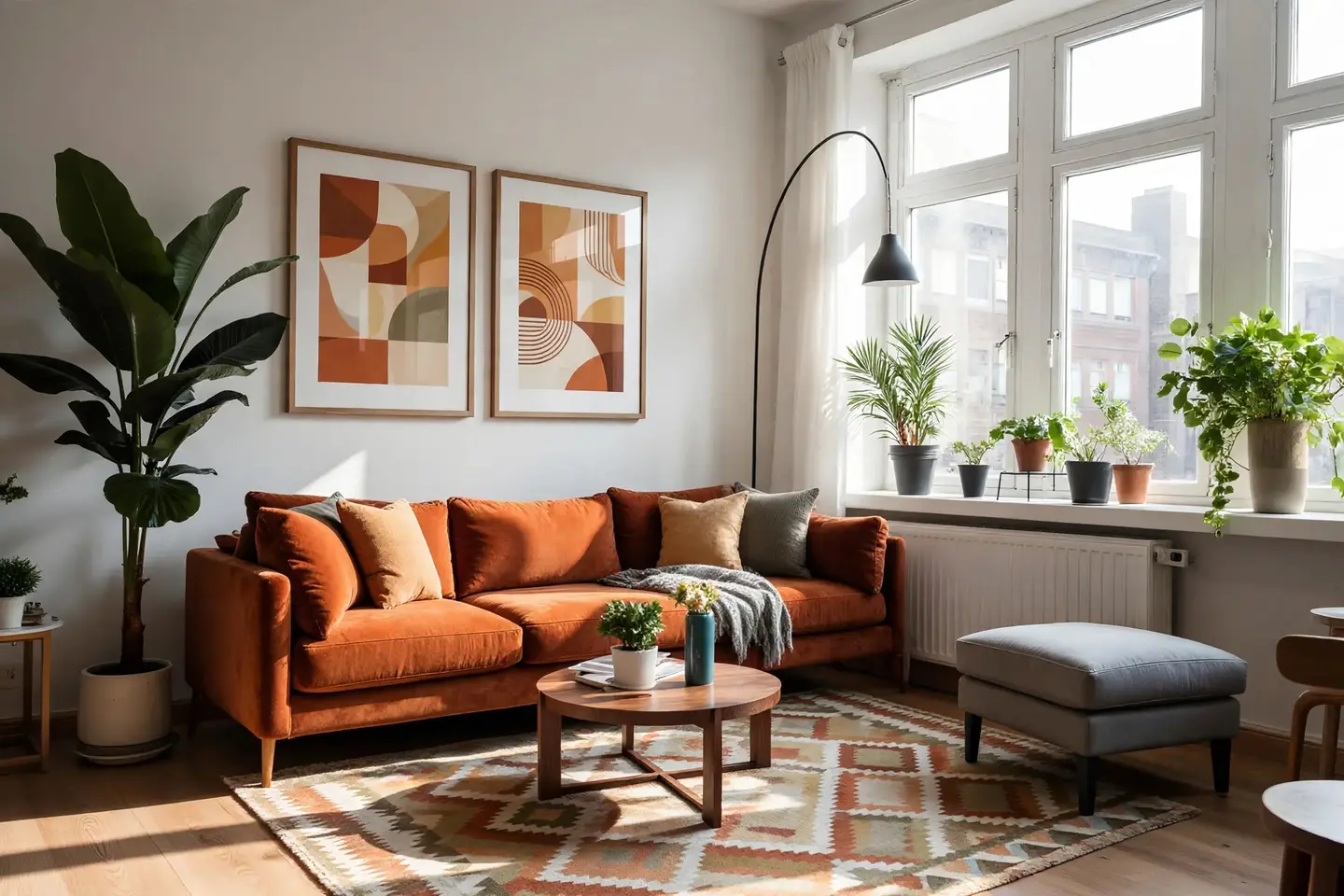
Same windows, same walls, same angle. New sofa, rug and art, and the coffee table kept its round shape but took a darker walnut finish. Notice the grey footstool on the right: we didn’t mention it, so it stayed exactly as it was. That’s what image-to-image gives you that a text prompt can’t: the composition is locked, so you’re only deciding what changes.
Both edits together cost 2 credits, 2 cents, on top of the photo itself at 10 credits ($0.10).
What are the three ways to make an image from an image?
People use “image to image” for three different jobs. It helps to know which one you need before you start.
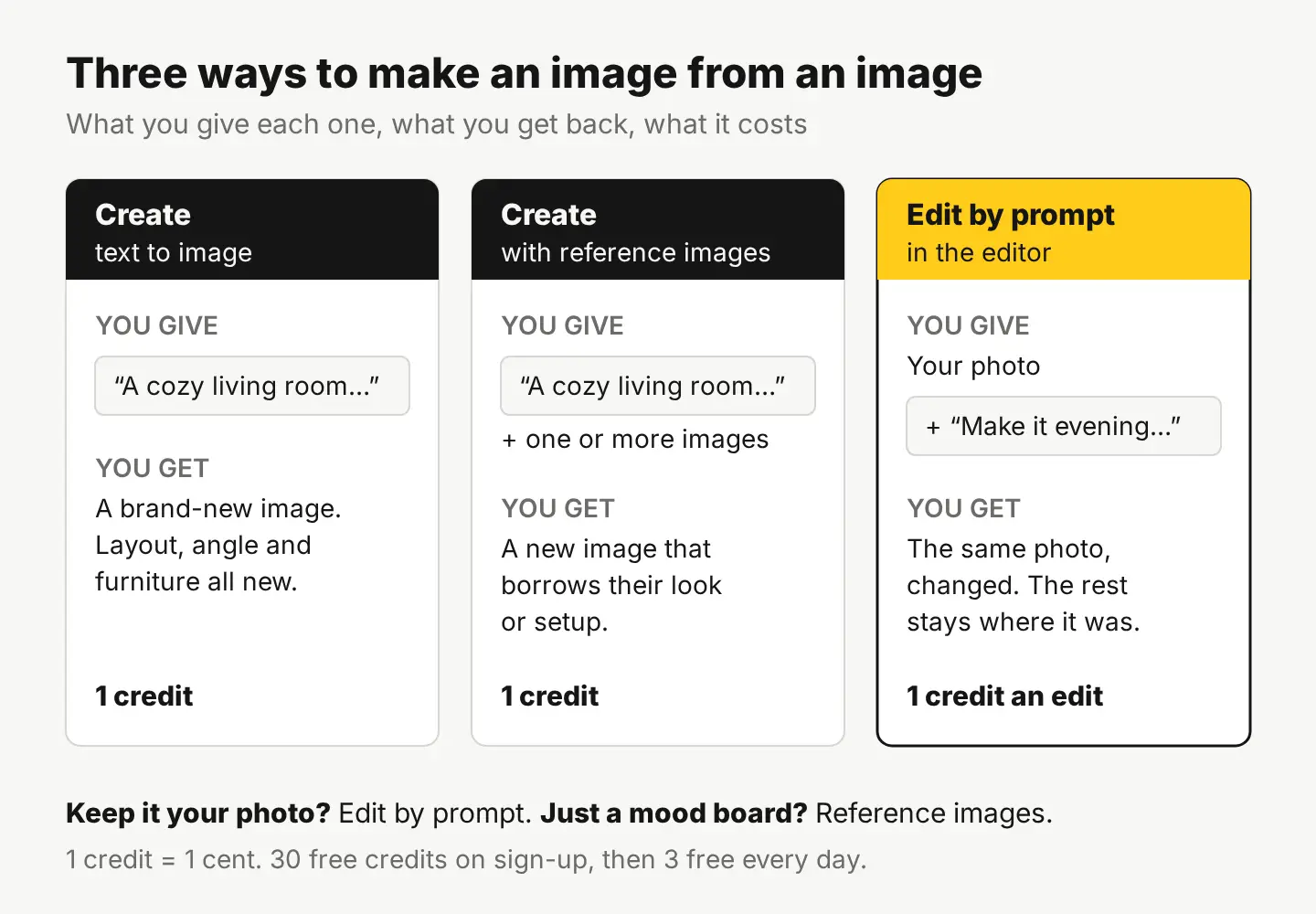
| You want to… | Use | You give it | You get |
|---|---|---|---|
| Make something that doesn’t exist yet | Create, text only | A description | A new image |
| Make something new that looks like an image you have | Create with reference images | A description plus one or more images to steer the look | A new image in that style or setup |
| Change a photo you already have | Edit by prompt, in the editor | The photo plus an instruction | The same photo, changed |
A quick way to choose: if the result should still be “your photo,” use Edit by prompt. If the image is only a mood board for something new, use reference images in Create.
If you want it to stay private, Create has a Private mode: the image stays in your browser, and nothing is saved to your account or our servers.
How do you write an image to image prompt?
Every edit above has the same three parts, and the third one is the one people skip:
- Say what kind of change it is. “Make it a rainy evening” or “restyle as mid-century.” One idea per edit.
- List what changes. Be concrete: “rust-orange velvet sofa,” not “nicer sofa.” Two to four things is plenty.
- List what stays. Name the things you care about (“the windows, the plants, the camera angle”) and add “exactly as they are.” Without this line, the AI is free to move, swap or add things.
Some habits that help:
- Always edit the original. Run each new version from the untouched photo, not from the last result, so mistakes don’t pile up.
- Fix a near-miss with a smaller edit. If the result is close, run one more short edit on it (“make the rug less busy”) instead of starting over.
- Check at 100% zoom. Look at straight lines (window frames, shelves), small objects and edges before you use it.
- Don’t ask for text in the image. Add words afterward with the editor’s Text or WordArt tools, where you control the font and spelling.
For more on wording, see how to write AI image prompts that get what you want. For one specific job, there’s a full walkthrough on how to change the season in a photo.
What can you use image to image AI for?
Some jobs where it pays off:
- Mood variations. Morning, golden hour and evening versions of one photo for a week of posts.
- Seasonal refreshes. Last spring’s product photo, made ready for the holidays.
- Styling ideas. “What would this room look like in green?” before anyone buys paint. Label it as a concept.
- Cleanups. “Remove the cables under the desk” when the free Magic eraser isn’t enough.
- A starting point for something new. Use a photo as a reference image in Create when you want the same setup with a different subject.
One honesty rule: an edited photo is no longer a record of what was there. Don’t use an AI-restyled room to advertise a real rental or listing as it is today. Label edits like these as concepts, and say when an image was made or changed with AI.
Can you use image to image AI results commercially?
Yes, with two things to know. On StockUnlimited, AI images and AI edits are allowed for commercial use. But AI output comes with no legal protection, and it may not be copyrightable in many countries. In the US, the Copyright Office’s guidance on AI says prompts alone don’t make you the author, though your own creative additions can be protected.
When you start from a licensed stock photo, editing doesn’t change its license: you can still use it in ads, on social and on products, with print runs up to 500,000 copies. The legal protection, up to $5,000, covers the original photo only, not what the AI changed. Read the full license for the details.
Try it on one of your photos
Pick one photo you already use, and run one small edit (new light) and one big edit (new style) from the original, using the three-part prompt. You get 30 free credits on sign-up with no card, then 3 free credits every day, so two edits cost you nothing to try. Open the free photo editor, choose Edit by prompt, and start with the line that says what stays.
Questions people ask
- Is image to image AI the same as a filter?
- No. A filter shifts the colors of every pixel the same way. Image to image AI redraws parts of the picture, so it can add rain to a window, swap a sofa or change the style while keeping the layout.
- Can I use image to image AI on photos of people?
- On your own photos, with care: check faces and hands at full size, because AI can change them. Don't use it to put real people in situations they weren't in, and say when an image was edited with AI.
- Will the edited image be the same size as the original?
- Check it before you print. If it comes out smaller than you need, the HD Upscaler goes up to 4x and 4K for 1 credit, or use the free Quick Upscale 2x in the editor.
- Can I edit a stock photo with AI?
- Yes. Editing doesn't change the stock license, so you can still use the photo commercially. The legal protection covers the original photo only, not the parts the AI changed.
Keep reading
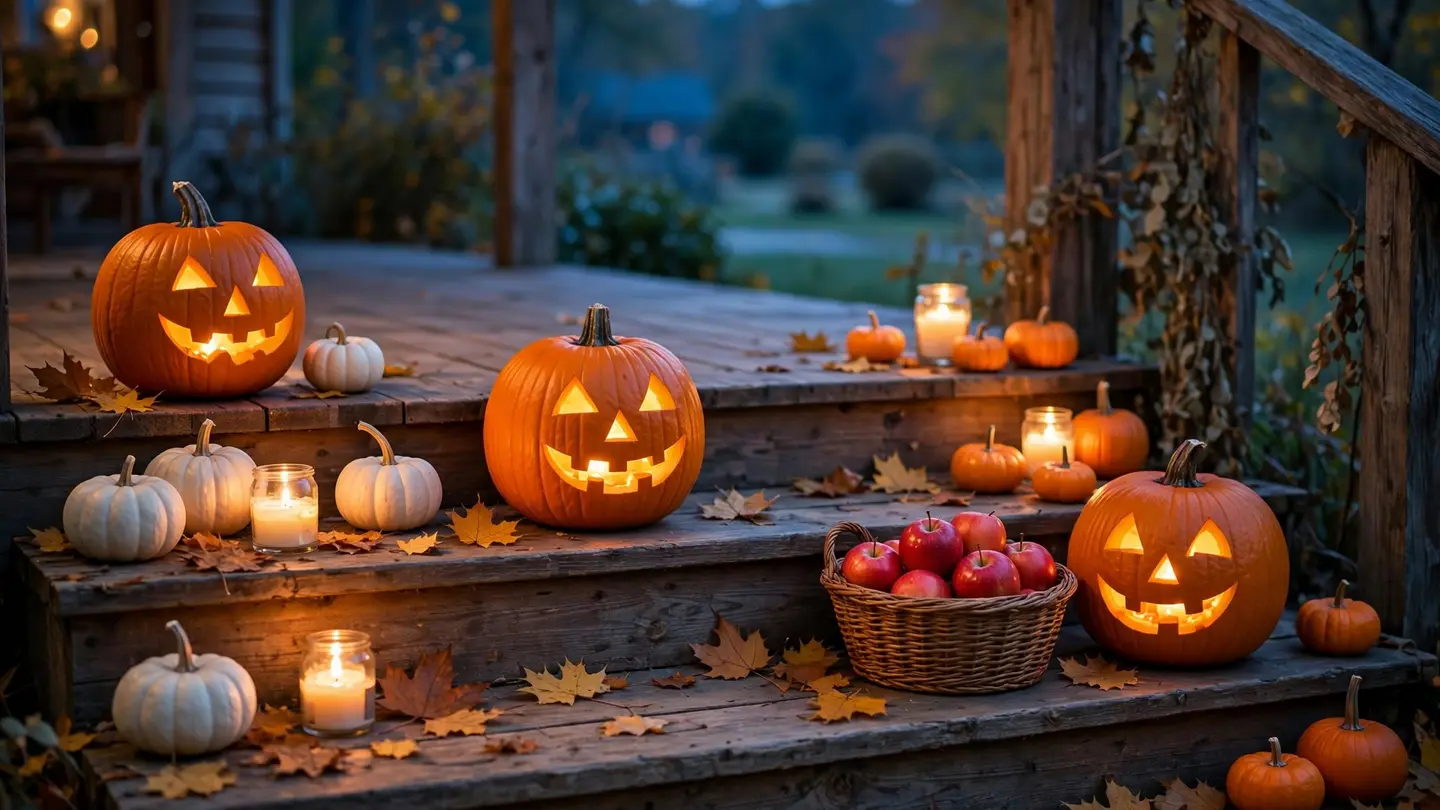 AI image generationHow to make Halloween images with AI for your businessPick a mood, describe the scene and props, and leave room for your text. Two real examples with exact prompts, plus a stock photo decorated for Halloween with AI.
 AI image generationWhich AI image style fits your brand? One prompt, 4 stylesKeep the scene, swap only the style words. We made one café scene in 4 AI styles for 4 credits: the exact prompts, what each suits, and how to stay consistent.
 AI image generationHow to write AI image prompts that get what you wantDescribe a photo, not a topic: style, subject, setting, light, color and camera. See one idea prompted two ways, with the real results and exact prompts.