How to change the season in a photo with AI
Name the season, say what changes and what stays, and one AI edit turns summer into fall. A real before and after, the exact prompts and a season cheat sheet.
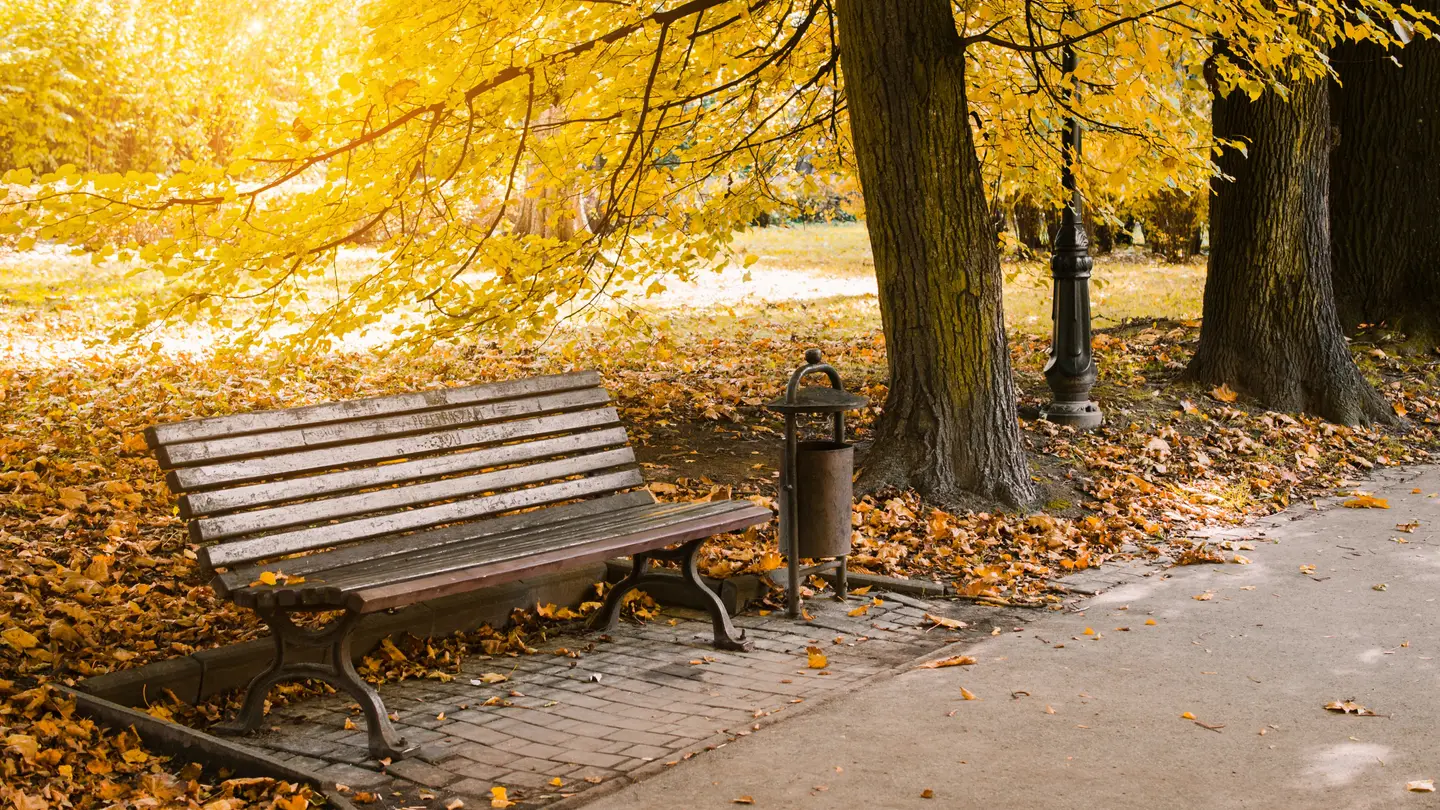
To change the season in a photo, give an AI photo editor one plain instruction: name the new season, list what should change (the leaves, the ground, the light), and list what must stay exactly as it is. With Edit by prompt in the StockUnlimited editor, that’s one edit for 1 credit, and it takes seconds.
This guide shows a real summer photo we turned into fall and then winter, with the exact prompts, a cheat sheet of what to change for each season, the free alternative for a light autumn tint, and what the license and social platforms say about edited photos.
Can AI really turn a summer photo into fall?
Yes, and the good tools now keep the photo itself intact. Older “autumn filters” only shifted the colors, so green grass turned muddy and skin went orange. An AI edit changes things instead: it recolors the leaves, drops new leaves on the ground and relights the scene, while the benches, the path and the camera angle stay put.
Here’s our starting point, a licensed stock photo from our catalog of a park path in midsummer. It’s shown as it came, unedited.
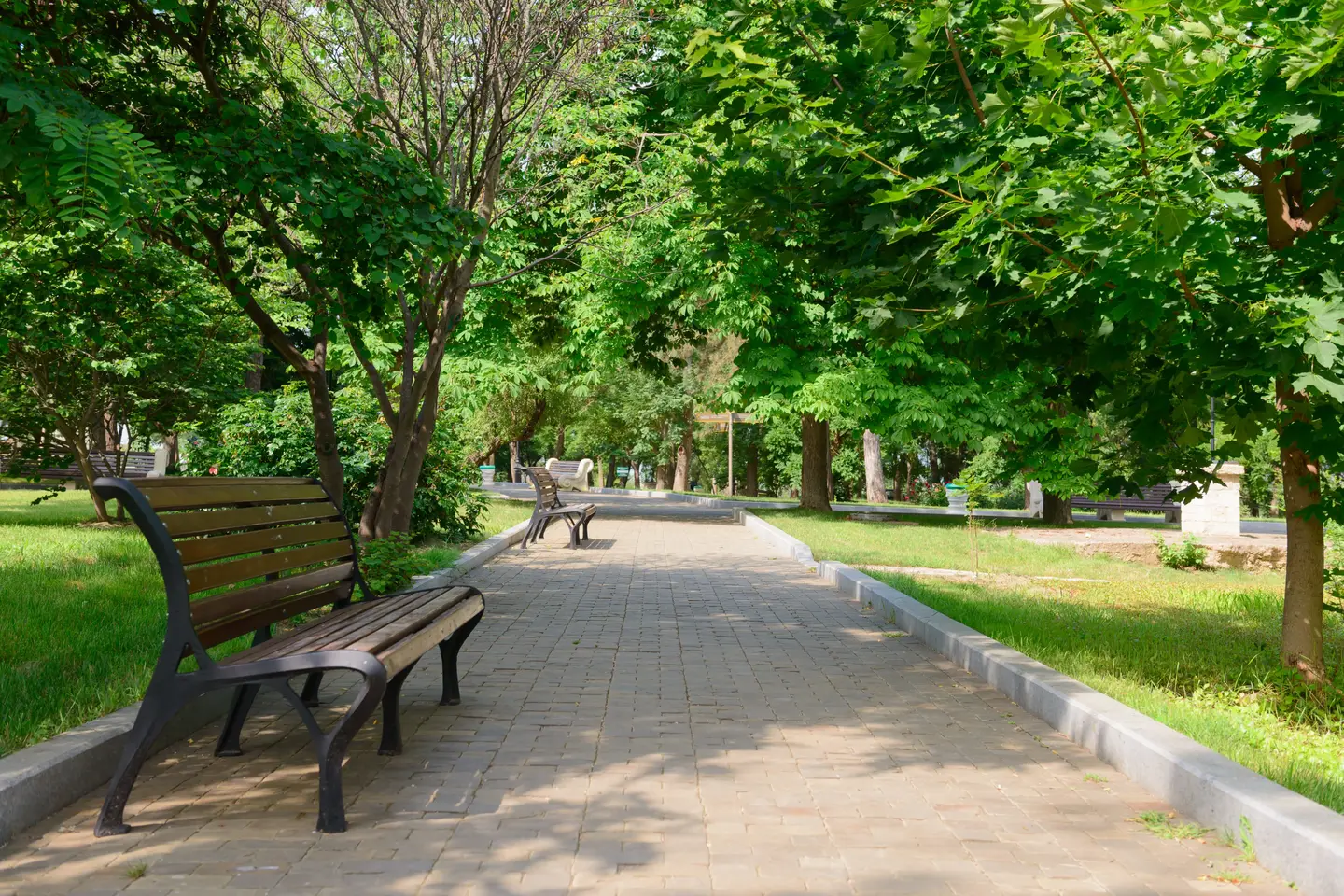
We opened it in the editor and typed this into Edit by prompt:
Change the season to mid-autumn. Turn the leaves on the trees orange, gold and red, scatter fallen leaves on the grass and along the edges of the path, and make the sunlight a warm late-afternoon glow. Keep the benches, the paved path, the curbs and the camera angle exactly as they are.
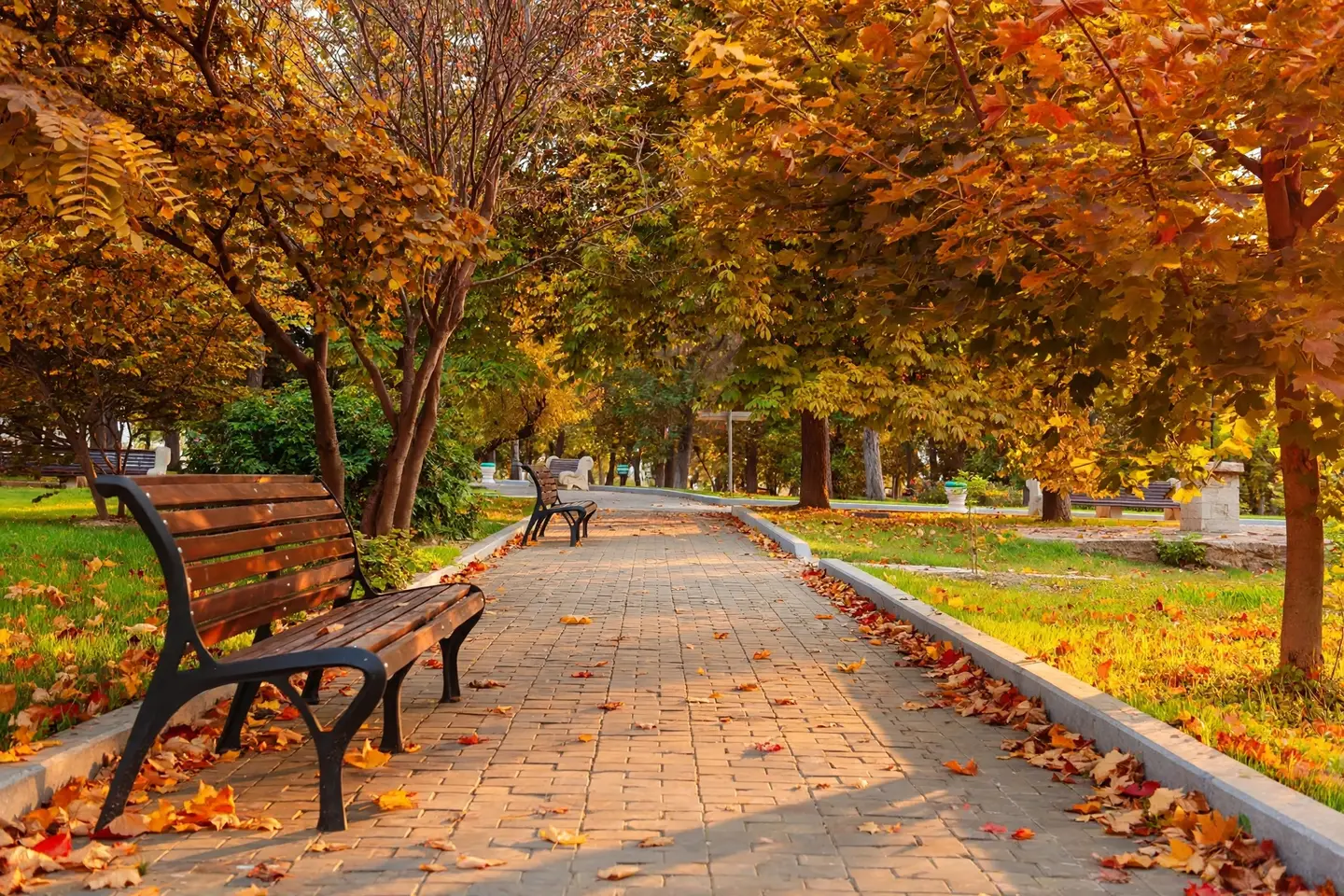
Look at what stayed the same: the bench in front, the second bench down the path, the curbs, even the small stone post on the right. Look at what changed: the leaf color, the leaves piled against the curbs, and the light, which now comes in low and golden. Some of the lawn is still green, which is also what a real park looks like in October.
How do you change the season with Edit by prompt?
It takes five steps in the free photo editor. The editor itself is free with no watermark; only the AI edit costs anything, 1 credit (1 cent) an edit.
- Open your photo. The editor opens JPG, PNG, WebP, GIF and BMP files, or any image in your StockUnlimited library.
- Keep a clean copy. Save the original to your library or your device first, so you can always go back.
- Pick Edit by prompt and type your instruction in three parts: the new season, what changes, what stays (more on that below).
- Check the details at 100% zoom. Look at edges where trees meet sky, at anything with straight lines (railings, windows, signs), and at people if there are any.
- Export with Resize & export as PNG, JPEG, WebP or PDF. If the photo is going to several platforms, run it through the free social media resizer to get every size in one zip.
If the result is close but not quite right, don’t start over. Run a second, smaller edit on the result, like “make the fallen leaves on the path sparser” or “make the sky a little more overcast.” Small follow-up edits keep what already works.
How should you word a season-change prompt?
Every good season prompt has the same three parts. The first two tell the AI what to do. The third, what stays, is the one people skip, and it’s the reason an edit comes back with a new bench, a different angle or a person who wasn’t there.
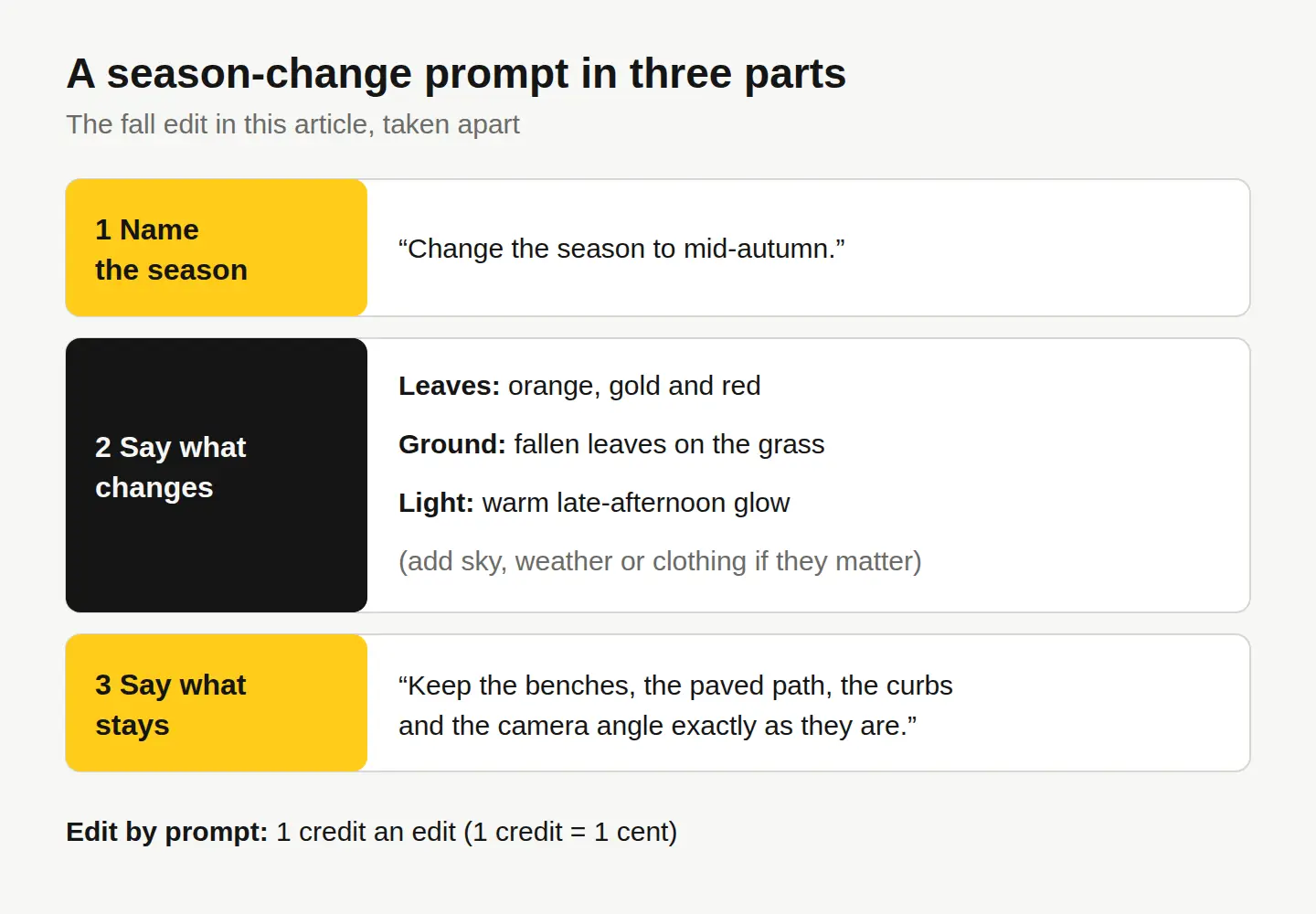
For the “what changes” part, here’s a cheat sheet for each season. Pick two or three lines, not all of them.
| Season | Trees and plants | Ground | Light and sky |
|---|---|---|---|
| Spring | Fresh light-green leaves, blossoms on the branches | Young grass, a few petals | Soft, bright, clear sky with light clouds |
| Summer | Full, deep-green leaves | Thick green lawn | Strong sun, hard shadows, blue sky |
| Fall | Orange, gold and red leaves, some bare branches | Fallen leaves along edges and under trees | Warm, low late-afternoon sun |
| Winter | Bare branches, snow on the limbs | Fresh snow, cleared paths | Soft and overcast, cool tones |
Be specific about amounts. “A few fallen leaves” and “the ground covered in leaves” give very different pictures. If the scene has people, say what they should wear (“give the people coats and scarves”) or the AI may leave them in T-shirts in the snow. For more on writing clear instructions, see how to write AI image prompts that get what you want.
Can you get every season from one photo?
Yes. Run each edit on the original, not on the last result, so every version starts clean. Here’s winter, made from the same summer photo with one more credit:
Change the season to winter. Make the trees bare with a little snow on the branches, cover the grass with fresh snow, put a thin layer of snow on the benches, keep the paved path mostly cleared, and make the light soft and overcast. Keep the benches, the paved path, the curbs and the camera angle exactly as they are.
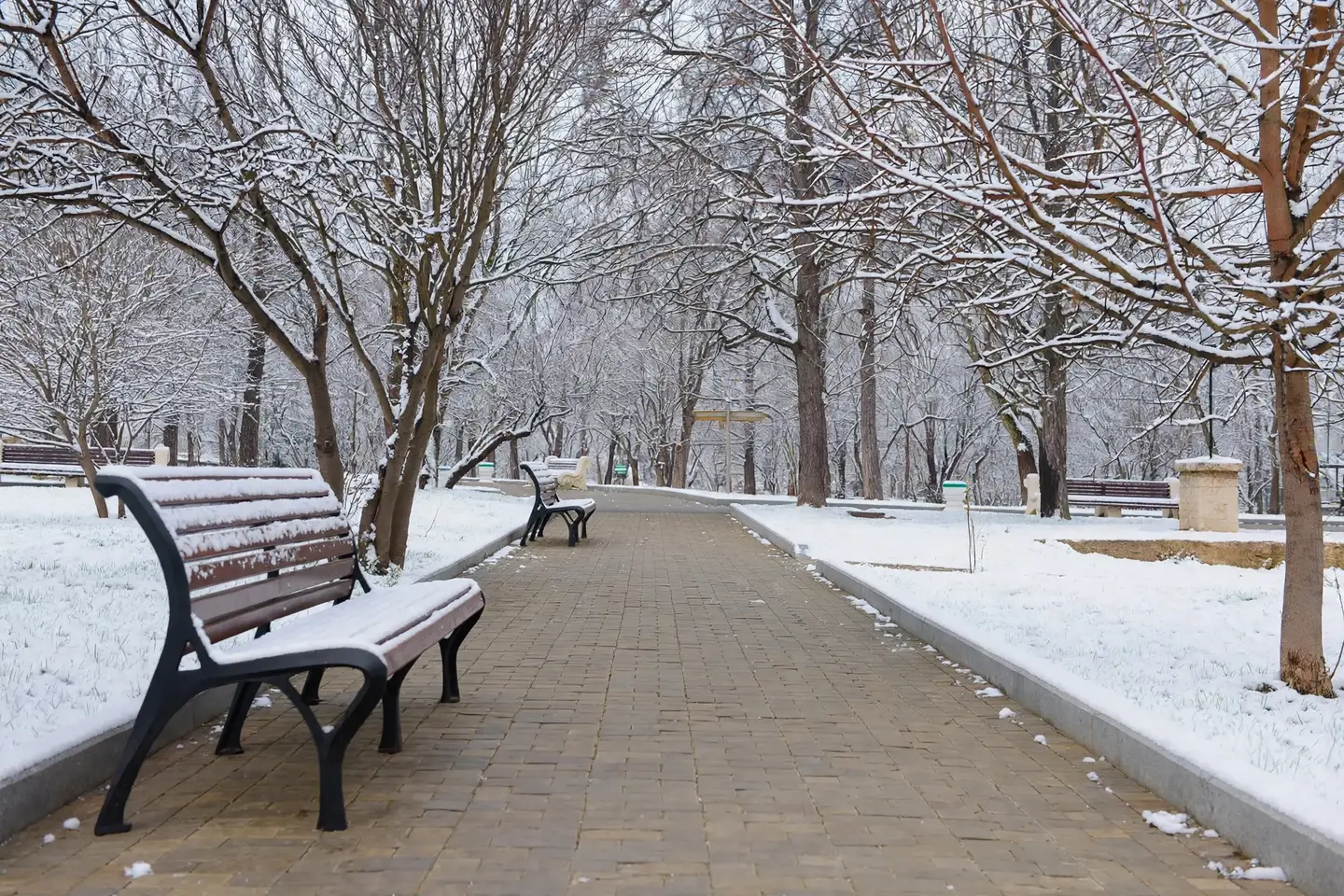
That’s the whole seasonal set from one picture: the stock photo at 10 credits ($0.10), plus two edits at 1 credit each. With the 30 free credits you get on sign-up, you could do it today without a card. Our pricing page has the plans if you need more.
This is where season edits earn their keep:
- Seasonal social posts and banners that match your existing brand photos, instead of a new shoot every quarter.
- Website headers that change with the calendar while the layout stays the same.
- Mockups and pitches that show a client how a place or a product display could look in the holidays.
When is a free color tweak enough?
If you only want a warmer, “autumn mood” version and don’t need the leaves to change, you don’t need AI at all. In the editor, Adjust & Finetune lets you raise the warmth and lower the saturation a little, and Filters has one-tap looks. Both are free.
A color tweak can’t turn green leaves orange without also tinting everything else, though. The grass, the sky and any skin in the photo shift too. Use it for mood; use Edit by prompt when the season itself has to change.
To tidy a photo before you change its season, like removing a trash can or a sign, see how to remove unwanted objects from a photo. Do the removal first, then the season edit.
Can you edit a licensed stock photo like this, and do you have to say so?
You can. Editing doesn’t change the license on a StockUnlimited stock photo, so the edited version can go in ads, social posts and products the same way the original could. One thing to know: the legal protection of up to $5,000 covers claims about the original photo, not what your edit added. The details are on our license page.
Whether to label it depends on where it goes and what it claims:
- Social platforms may label it for you. Meta says that when it detects an image was only modified or edited by AI tools, it puts the “AI info” label in the post’s menu, and it shows the label more prominently on images it detects were generated by AI (Meta’s announcement on labeling AI content).
- Never use a season edit to claim something that isn’t true. A rental listed “in winter” should show the property as it is. The same goes for event photos, product condition and anything a buyer relies on.
- Mood is fine. A fall banner for a café or a snowy header for a holiday sale doesn’t claim anything about the day the photo was taken.
When in doubt, a short caption like “edited with AI” costs nothing and keeps trust.
Your next step
Pick one photo you already use, like your website header or your most-liked post, and make its fall version this week. Open it in the free photo editor, save a clean copy, and use the three-part prompt from this article: the season, what changes, what stays. It’s 1 credit, and if the first try misses, a small follow-up edit usually fixes it.
Questions people ask
- Can I change the season in a photo that has people in it?
- Yes, but mention them in the prompt. Say what they should wear, like coats and scarves for winter, and check faces and hands closely at full size before you use the image.
- Can I print a season-edited photo large?
- Check it at 100% zoom first. If it isn't big enough for a poster or a large banner, run it through the HD Upscaler afterward, which goes up to 4x and 4K for 1 credit.
- Can I turn a winter photo into summer?
- Yes, the same three-part prompt works in any direction. Going from snow to summer is harder, because the AI has to invent grass and leaves that were hidden, so describe them clearly and check the result.
- Is Edit by prompt free?
- The editor and its other tools are free with no watermark. Edit by prompt costs 1 credit an edit. You get 30 free credits on sign-up, no card, then 3 free credits every day.
Keep reading
 Photo editingHow to remove unwanted objects from a photo, freeBrush over it with the free Magic eraser, or describe the change with Edit by prompt for 1 credit. Which tool fits which job, step by step, with a real example.
 By industryWhat photos does an Etsy listing need? A shot-by-shot planThe real item first, then details, scale, options and packaging, at 2000 px or more. The full shot list, Etsy's crop trap, and free tools to make each photo.
 AI image generationHow to write AI image prompts that get what you wantDescribe a photo, not a topic: style, subject, setting, light, color and camera. See one idea prompted two ways, with the real results and exact prompts.