How to write AI image prompts that get what you want
Describe a photo, not a topic: style, subject, setting, light, color and camera. See one idea prompted two ways, with the real results and exact prompts.
A good AI image prompt describes a photo, not a topic: the style, the subject, where it sits, the light, the colors and the camera angle, in one or two plain sentences. “A loaf of bread” gets you a loaf of bread; six specific details get you the picture you actually had in mind.
Below, we ran the same idea through Create, our AI image generator, twice: once with a three-word prompt and once with a full one. You’ll see both results, the exact prompts, the six parts that made the difference, and how to fix a near-miss without starting over.
What does a vague prompt actually give you?
Here’s what our generator made from the prompt “a loaf of bread”. We didn’t retry or pick the best of several; this was the first result.
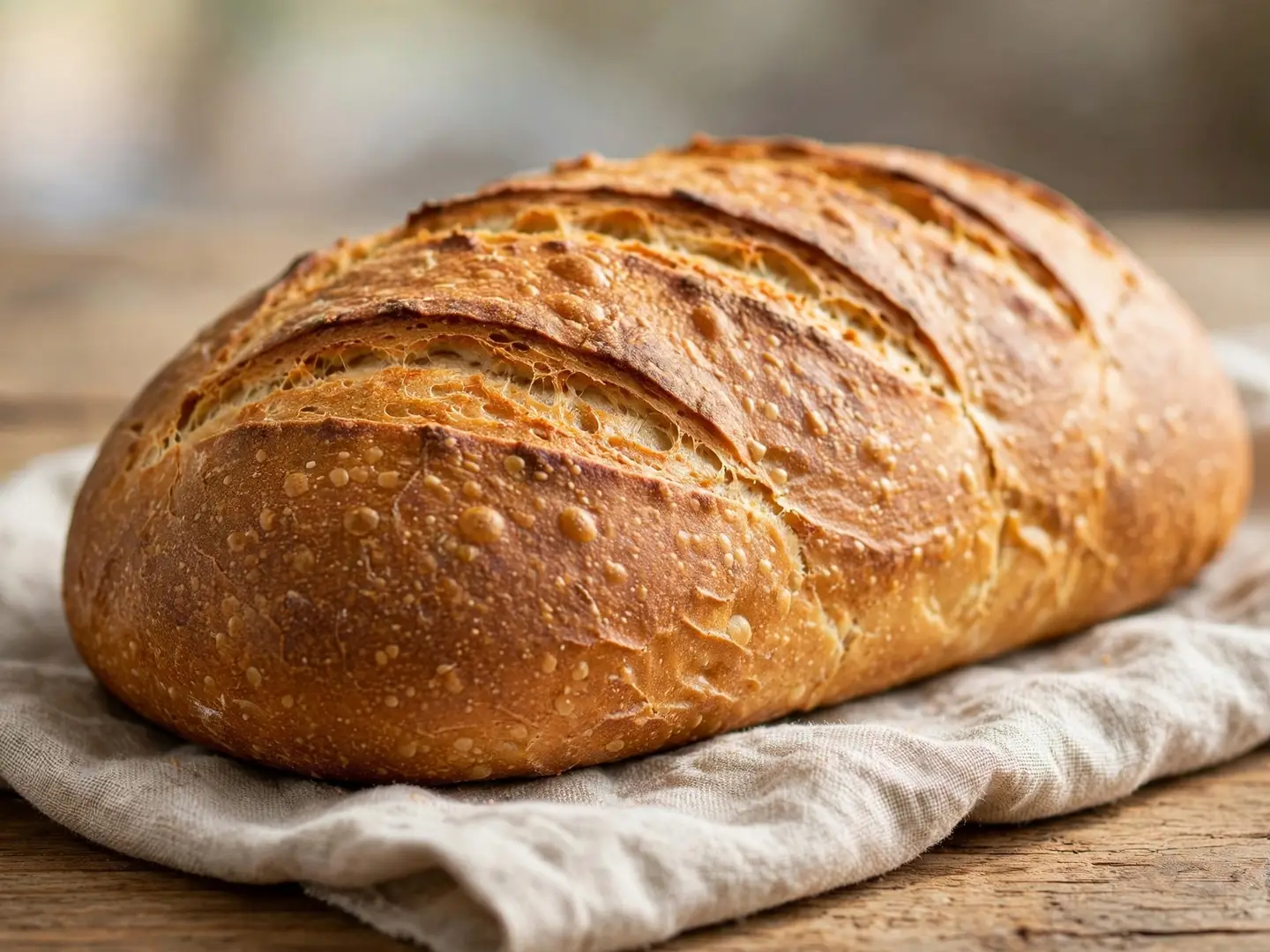
It’s a perfectly good loaf. It’s also not your loaf. The generator filled every gap on its own: the shape of the bread, the cloth, the table, the light, the framing that fills the whole picture. That’s the core problem with short prompts. Nothing is wrong, but nothing was decided by you, so the image looks like the average of every bread photo there is.
If you wanted this for a bakery’s autumn post with room for a headline, you’d have nowhere to put the text and nothing that says “autumn.”
How do you write a prompt that gets what you want?
Decide the six things a photographer would decide before pressing the shutter, and write them down. Here’s the second prompt, word for word:
A photoreal close-up of a crusty round sourdough loaf on a floured oak board, one slice cut and leaning against it, a linen towel and a small dish of butter beside it, soft side light from a window on the left, warm autumn tones, shallow depth of field, shot from a low angle, the right third of the frame plain and empty
And here’s what it made, again on the first try:
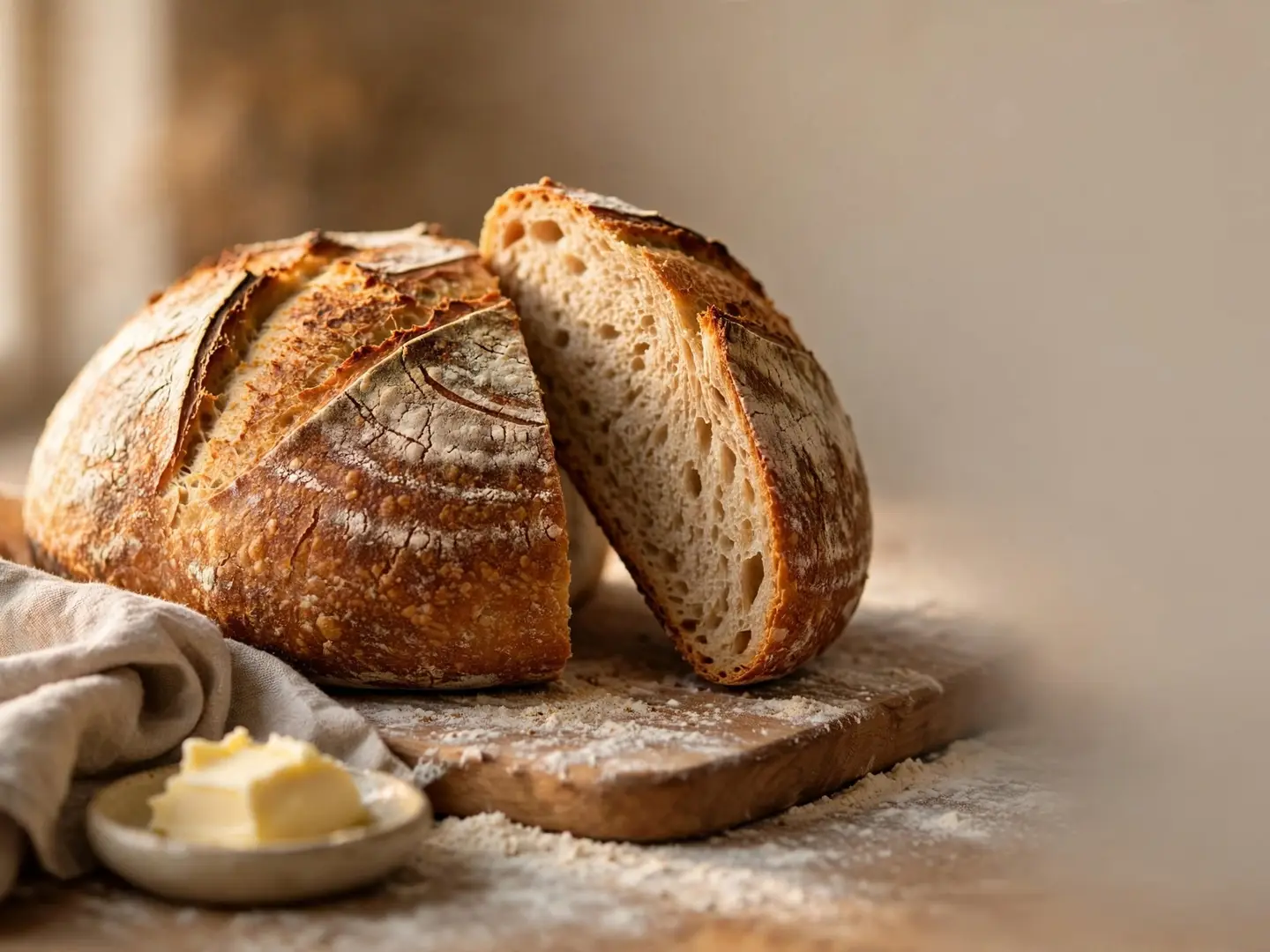
Almost everything we asked for is there: the round loaf, the floured board, the towel, the butter, the light from the left, the warm tones, the soft background and a clean, empty right third where a headline can go.
One thing isn’t. We asked for “one slice cut and leaning against it,” and the generator cut the loaf in half instead. That’s normal. AI models don’t follow every word, and when a detail matters (the exact cut, a count of objects, a hand position), expect to check it and fix it.
What are the six parts of a good prompt?
Every useful prompt answers the same six questions. Here’s our prompt taken apart:
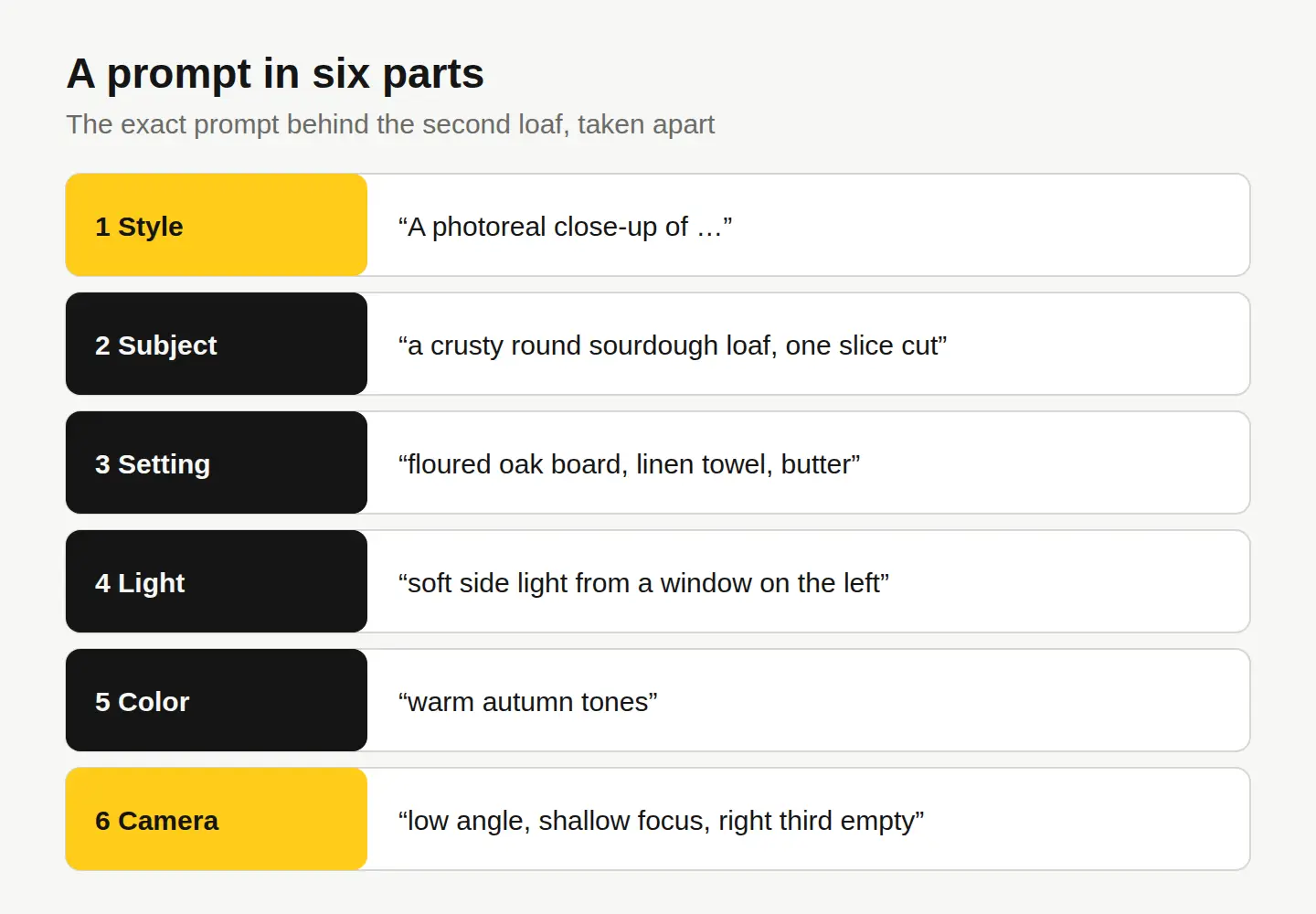
- Style. Say what kind of image it is first: “a photoreal close-up,” “a flat vector illustration,” “a watercolor.” This sets everything that follows.
- Subject. Name the main thing with two or three details: not “bread” but “a crusty round sourdough loaf.” Size, shape, material and state (sliced, steaming, half-eaten) all count.
- Setting and props. Where is it, and what’s around it? Two or three props are plenty. A long list makes a cluttered picture.
- Light. The part most people skip, and the one that changes the mood most. “Soft side light from a window on the left,” “bright overcast daylight,” “low golden sun” (what photographers call the golden hour).
- Color and mood. “Warm autumn tones,” “cool and minimal,” “bright and cheerful.” Match it to your brand or the season.
- Camera and framing. The angle (low, eye level, overhead), how close (close-up, wide), the focus (shallow depth of field blurs the background) and where the empty space goes if you’ll add text later.
You don’t need all six every time. But each one you leave out is a decision the generator makes for you.
Which prompt words work best? A quick reference
Plain, concrete words beat clever ones. These are the ones we reach for most:
| Part | Words that work | Skip these |
|---|---|---|
| Style | photoreal, close-up, flat lay, flat vector illustration, watercolor, 3D render | “amazing,” “beautiful,” “8K masterpiece” |
| Light | soft window light, side light, overcast daylight, low golden sun, backlit | “perfect lighting” |
| Color | warm autumn tones, muted pastels, high contrast, black and white | “vibrant colors” on everything |
| Camera | low angle, eye level, overhead, shallow depth of field, wide shot | camera model names |
| Framing | the right third empty, centered, lots of space above | “good composition” |
| Leave out | real people’s names, brands, logos, text in the image | anything you don’t own |
Two tips from the last row. First, AI is bad at writing words inside a picture, so leave space and add your headline afterward in the free photo editor with Text or WordArt. Second, never ask for a real person, a celebrity or a brand’s logo. Describe a scene instead.
How do you fix a near-miss without starting over?
Change one thing at a time. If you rewrite the whole prompt, you get a whole new picture and lose what you liked.
For small changes to an image you already have, use Edit by prompt in the editor: describe the change in words and the AI makes it, for 1 credit an edit. We opened the second loaf and typed:
add a few small red and orange autumn leaves on the board next to the bread, keep everything else the same
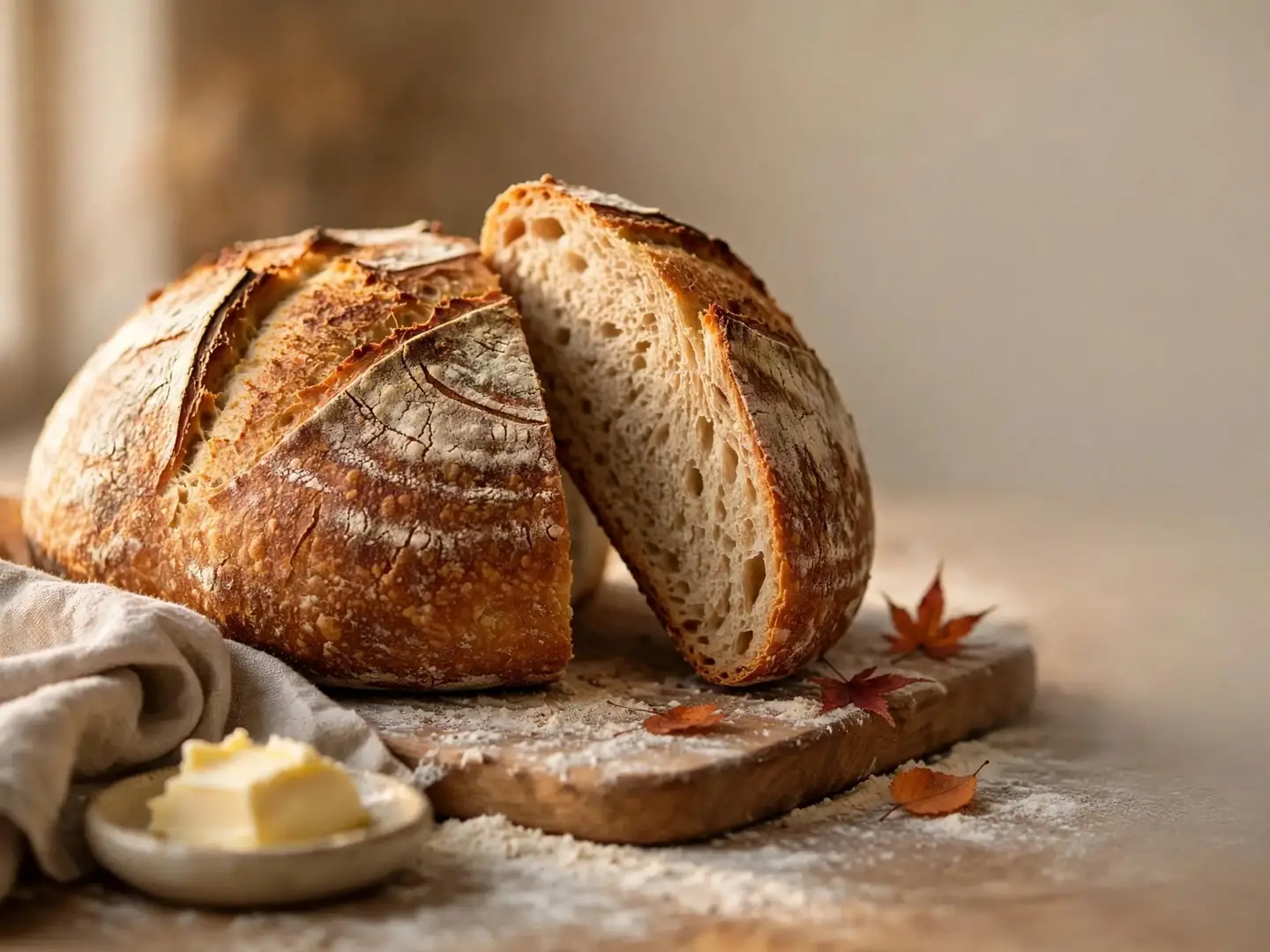
The bread, the butter, the light and the empty space all stayed put. Only the leaves were added. “Keep everything else the same” is worth adding to almost every edit prompt.
Here’s the order we’d work in:
- Write the six-part prompt and generate once.
- Check the details that matter (counts, cuts, where the empty space is).
- If the whole look is wrong, change one part of the prompt (usually light or camera) and generate again.
- If it’s nearly right, fix it with Edit by prompt instead of regenerating.
- Add your text in the editor, then export at the size your platform needs.
What does it cost, and can you use the result?
Each image on Create costs 1 credit, and an Edit by prompt costs 1 credit too. A credit is 1¢. You get 30 credits when you sign up, no card needed, then 3 free credits every day, so the four AI images in this article would fit in a first afternoon. Plans are on our pricing page.
AI images from Create can be used commercially, in ads, posts and products. Two limits to know: they come with no legal protection, and in many countries they may not be copyrightable. In the U.S., the Copyright Office has said that prompts alone generally don’t give enough human control to make the output yours to copyright. If you need protection, or a real place, real people or a real product, a licensed stock photo is the better pick. Our guide to choosing between a stock photo and an AI image walks through when each one wins.
If you’d rather your drafts not be saved anywhere, Create has a Private mode: the image stays in your browser, and nothing is saved to your account or our servers. You can also add reference images to Create to steer the look toward a style you already use.
Your next step
Pick one image you need this week: a seasonal post, a blog header, a product background. Write its six parts on one line (style, subject, setting, light, color, camera), paste it into Create and look at what comes back. Then make one change, not ten, and try again.
Questions people ask
- How long should an AI image prompt be?
- One or two sentences is usually enough, around 30 to 60 words. Past that, extra details start to compete and the picture gets cluttered. Cover the six parts, then stop.
- Why does the AI ignore part of my prompt?
- Models weigh some words more than others and fill gaps on their own, so small details like counts or exact cuts often slip. Move the detail earlier in the prompt, or fix it afterward with Edit by prompt.
- Can I put text or a logo in an AI image?
- Leave text out of the prompt: generated lettering is often garbled. Leave empty space instead and add your headline in the editor. Never ask for someone else's logo or brand.
- Do I get the same image if I use the same prompt twice?
- No. The same prompt gives a different image each time, which is useful for options. If you like one, keep it and change it with Edit by prompt rather than regenerating.
Keep reading
 Photo editingHow to change the season in a photo with AIName the season, say what changes and what stays, and one AI edit turns summer into fall. A real before and after, the exact prompts and a season cheat sheet.
 By industryWhat photos does an Etsy listing need? A shot-by-shot planThe real item first, then details, scale, options and packaging, at 2000 px or more. The full shot list, Etsy's crop trap, and free tools to make each photo.
 Photo editingHow to remove unwanted objects from a photo, freeBrush over it with the free Magic eraser, or describe the change with Edit by prompt for 1 credit. Which tool fits which job, step by step, with a real example.