AI product photography: turn one phone photo into a full set
Keep your real product, let AI change the scene. The workflow, a real candle photo placed in two scenes with the exact prompts, and marketplace rules.

AI product photography means taking one real photo of your product and letting AI build the finished shots around it: a clean white-background image, styled scenes, seasonal versions. The product stays real; the AI changes the setting, the light and the props.
This guide shows how to shoot the starting photo, which AI tool to use for which shot, a real example of one candle photo placed in two scenes (with the exact prompts and what it cost), and what marketplaces expect from AI images.
What is AI product photography, and what should AI not do?
There are two ways to use AI for product photos, and only one is safe for selling.
- Start from a photo of your real product and change what’s around it. The shape, color, label and size come from the camera, so the customer gets what they saw.
- Generate the product from a description. The AI invents details: a lid that doesn’t exist, a different glass color, a handle in the wrong place. That’s fine for a mood board, not for a listing.
So the rule for this whole guide: AI changes the scene, never the product. If an edit alters the product itself, throw it away and try again.
How do you take the starting photo?
You don’t need a studio, but the AI can only keep what the camera caught. A sharp, evenly lit photo gives every later step more to work with. Before you shoot, run through this checklist:
- Light: daylight from a window, beside the product, not behind it. Turn off overhead lights so the colors don’t mix.
- Background: a plain sheet of white paper or card, curved up behind the product so there’s no visible edge.
- Angle: shoot at the angle the customer will hold it. For most products that’s slightly above, like the example below.
- Fill the frame: get close, but leave a little space on every side so nothing is cut off.
- Clean it: dust, fingerprints and stray threads all survive into every AI version.
- Extra angles: shoot the back, the side and any detail (the label, the clasp, the texture). Buyers ask about those, and AI can’t invent them truthfully.
If your photo has a smudge or a stray object in the frame, fix that first with the free Magic eraser in the photo editor, before any AI scene work.
How to do AI product photography, step by step
Here’s the full workflow with our tools, from phone photo to every size you need.
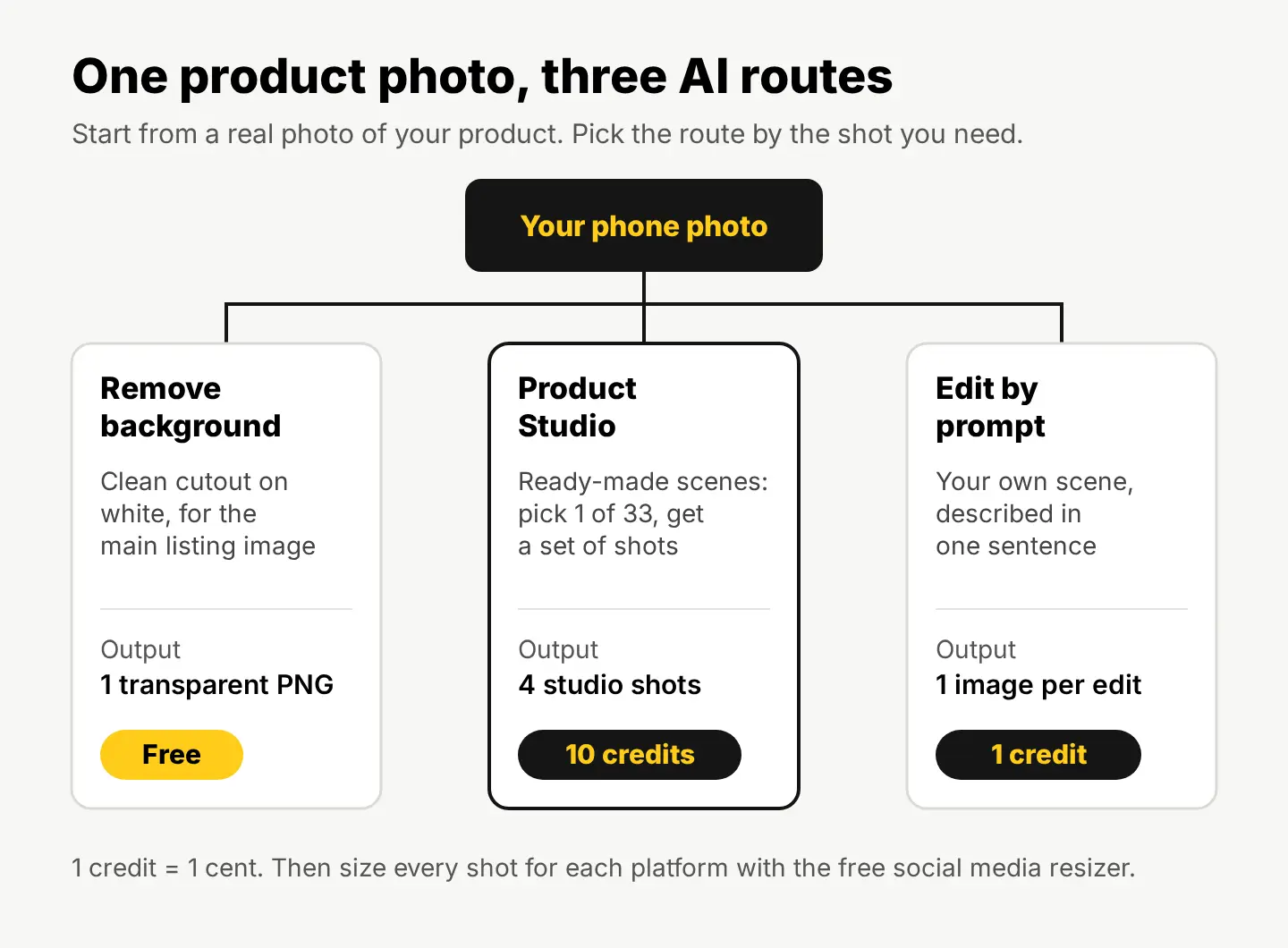
- Make the main image. Open our free background remover and cut the product out. You get a transparent PNG in seconds, and your photo is never uploaded. Put it on pure white, or any color your shop uses.
- Get a set of styled shots. Upload the same photo to Product Studio and pick a scene. There are 33, grouped as studio, home, kitchen, bathroom, lifestyle, outdoor, occasions and color backdrops. Each run gives you 4 shots for 10 credits ($0.10).
- Make the one scene you can picture. When none of the ready-made scenes fits, open the photo in the editor and use Edit by prompt: describe the scene in a sentence, and list what must stay the same. That’s 1 credit an edit.
- Check every result at 100% zoom against the real product (more on what to look for below).
- Export every size at once. Run your picks through the free social media resizer to get Instagram, Facebook, Pinterest, TikTok and the rest in one zip.
A real example: one candle photo, two scenes
Here’s our starting point: a licensed stock photo from our catalog of an amber glass candle with a cork lid, on plain white. It’s shown as it came, unedited. Think of it as the phone photo you’d take on your kitchen table.
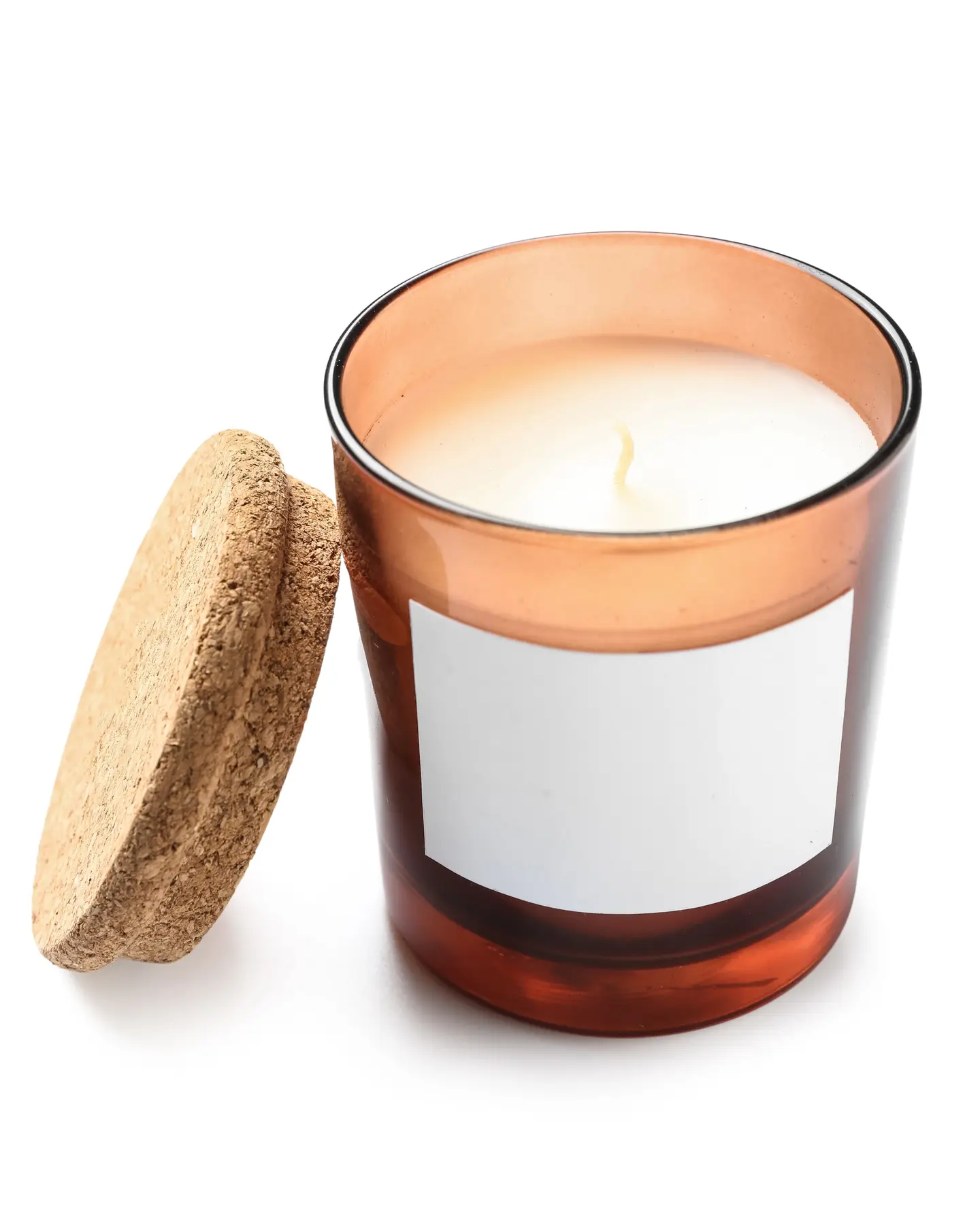
We opened it in the editor and typed this into Edit by prompt:
Place this candle on a light marble kitchen counter, with a small potted herb and a folded linen towel beside it, soft morning window light from the left, and a gently blurred kitchen in the background. Keep the candle, its amber glass, the cork lid, the blank white label, and their size, shape and position exactly as they are.
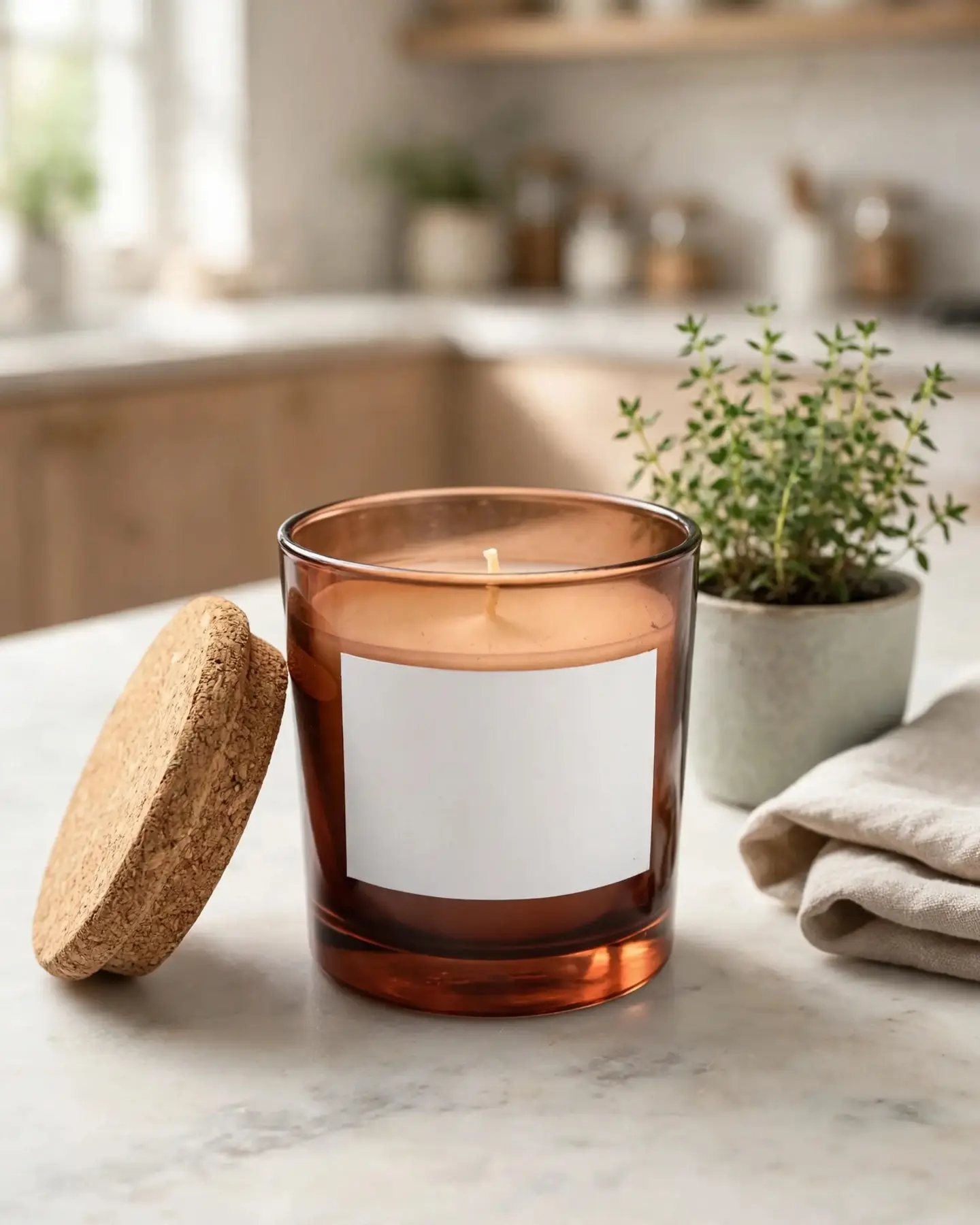
The scene works: soft light, believable shadows, props that suit a home-goods shop. But look closely and the product drifted a little. The wax now reads as amber instead of white, and the glass is more see-through than the original. That’s exactly the kind of change you’d catch in step 4 and fix with a smaller follow-up edit like “make the wax pure white, as in the original.”
Then the same original photo with a holiday prompt, for the gift-season listings coming up:
Place this candle on a rustic wooden table with a few pine sprigs, one pinecone and a small gift wrapped in plain brown paper with twine, warm evening light, and soft out-of-focus warm lights in the background. Keep the candle, its amber glass, the cork lid, the blank white label, and their size, shape and position exactly as they are.

This one kept the product almost exactly: white wax, copper-toned glass, the same cork lid and label. Same prompt pattern, different result, which is why you always check.
What it cost: the stock photo was 10 credits ($0.10) and each edit 1 credit, so 12 credits for the set. With your own product photo it’s 2 credits. Two notes on the method:
- Edit the original every time, not the last result, so each scene starts clean.
- Always end the prompt with what stays. Naming the glass color, the lid and the label is what keeps the product intact. For more on wording, see how to write AI image prompts that get what you want.
Which AI tool should you use for each product shot?
Most listings need a mix: one plain shot that shows the product honestly, and a few in context that show how it looks in a home or as a gift.
| The shot you need | Tool | Cost |
|---|---|---|
| Main image on white or a solid color | Remove background | Free |
| A small product that looks soft at full size | Quick Upscale 2× in the editor, or the HD Upscaler (up to 4× and 4K) | Free, or 1 credit |
| Several styled shots fast | Product Studio, one of 33 scenes | 10 credits for 4 shots |
| A specific scene you can describe | Edit by prompt | 1 credit an edit |
| Your product on a real photographed background | Change background | 10 credits a blend |
| A clothing item on a model | Fashion Studio | 10 credits for 4 shots |
| A short clip of the product turning in its scene | Product video | from 100 credits |
You get 20 free credits when you sign up, no card, then 3 free credits every day. That’s enough to try Product Studio once and a few prompt edits before you spend anything. The pricing page has the plans if you’re doing a whole catalog.
Can you use AI product photos on Amazon, Etsy and Google Shopping?
Usually yes, with two conditions: the photo has to show the product accurately, and you have to follow each marketplace’s image rules.
- Accuracy is your job. If the AI changed the color, the size or a part, the photo misrepresents what you sell. Compare every result to the real product before you list it.
- Main images have stricter rules. Marketplaces commonly ask for the first image to show the product alone on a plain background, with no extra props. Use the Remove background cutout there and save the styled scenes for the other image slots. Check your marketplace’s current image guide, since the rules change.
- Don’t strip the AI label. Google Merchant Center asks that product images made with generative AI carry metadata saying so, and that you don’t remove embedded tags like the IPTC DigitalSourceType property (Google’s Merchant Center help on AI-generated content).
On licensing: AI images from StockUnlimited can be used commercially, but they come with no legal protection and may not be copyrightable in many countries. Licensed stock photos are covered for commercial use, and editing one doesn’t change its license, though the legal protection of up to $5,000 covers the original photo, not what your edit added. Details are on our license page. This is general information, not legal advice.
For a full shot list per listing, see what photos an Etsy listing needs.
Your next step
Take one photo of your best-selling product today, by a window, on white paper. Cut it out with Remove background for your main image, then spend 2 credits on two Edit by prompt scenes using the “keep exactly as they are” ending from this article. If one comes back looking like your product in a real home, you have a holiday listing photo before the gift rush starts.
Questions people ask
- Can AI make a product photo without a photo of the product?
- It can make a picture of something similar, but it will invent details like the shape, color and label. Use that for mood boards only. For a listing, start from a real photo so customers get what they see.
- Do I need to say a product photo was edited with AI?
- Check each platform's rules. Google Merchant Center asks that AI-generated product images keep their metadata saying so. Most important, the photo must show the product as it really is.
- What if Product Studio has no scene that fits my brand?
- Use Edit by prompt on the same photo and describe your own scene in a sentence, ending with what must stay exactly as it is. It costs 1 credit an edit.
- Can I make a product video from the same photo?
- Yes. Product video turns one product photo into a short clip of it in its scene, from 100 credits for the shortest length.
Keep reading
 AI image generationImage to image AI generator: how it works, with a real exampleAn image to image AI generator turns a photo you have into a new version. See one room edited twice, the exact prompts, and when to use each method.
 AI image generationHow to make Halloween images with AI for your businessPick a mood, describe the scene and props, and leave room for your text. Two real examples with exact prompts, plus a stock photo decorated for Halloween with AI.
 AI image generationWhich AI image style fits your brand? One prompt, 4 stylesKeep the scene, swap only the style words. We made one café scene in 4 AI styles for 4 credits: the exact prompts, what each suits, and how to stay consistent.