How to restore old photos: scan, repair and colorize
Scan the print, let AI repair scratches, cracks and fading, then touch up by hand. Step by step, with scanning tips and real costs: 2 cents a photo.
To restore old photos, scan the print first, then run the scan through an AI photo restoration tool that repairs scratches, cracks, spots and fading, and finish with a few small fixes by hand. Most damaged family photos come back in minutes this way, without hours of work in Photoshop.
This guide walks through all of it: how to scan a print so the repair has something to work with, the restoration itself step by step, how to choose between keeping a photo black and white or coloring it, what to fix afterward, and what it costs with our tools, down to the cent.
What can you fix when you restore old photos?
More than most people expect. Today’s restoration tools are trained on exactly the damage old prints pick up over the decades:
- Scratches and cracks across the surface, including the fine web of cracks on old glossy prints
- Tears and creases from folding or storing photos in a wallet
- Spots, stains and mold dots
- Fading, where a print has turned pale, yellow or pinkish
- Black and white, which you can keep or turn into color
What restoration can’t do is bring back something that’s gone. If a corner is torn off and missing, or a face is lost to a big water stain, any tool can only guess what was there. A guess can look convincing and still be wrong, which matters when it’s your great-grandmother’s face. Good restoration keeps faces as they were; it shouldn’t invent new ones.
How do you scan an old photo for restoration?
The restoration is only as good as the scan. A sharp, evenly lit scan gives the tool real detail to work with; a blurry phone snap under a lamp gives it glare and shadows to “repair.”
With a flatbed scanner (best):
- Wipe the scanner glass with a dry microfiber cloth. Every speck on the glass becomes a speck on your photo.
- Lay the print face down, square to the edge.
- Scan in color, even for black and white photos. Color scans keep the paper’s tone and help the tool tell damage from image.
- Pick the resolution. A common rule of thumb: 300 dpi if you’ll reprint at the same size, 600 dpi if you want to enlarge it up to about double, and more for very small prints.
- Save as PNG (or TIFF if your scanner offers it), not a heavily compressed JPEG.
With a phone (fine for a first try):
- Take the photo out of its album sleeve or frame glass. Plastic and glass add glare.
- Use daylight from a window, not the flash, and shoot straight down so the print isn’t skewed.
- Fill the frame with the print, hold steady, and take two or three shots to pick the sharpest.
Handle the original with care. Hold prints by the edges with clean, dry hands, and don’t repair tears with tape: preservation experts warn that pressure-sensitive tape and rubber cement damage photographs over time (NEDCC’s guide to the care of photographs). Fix the tear in the scan, and keep the print in an acid-free sleeve or box. For anything rare or valuable, talk to a conservator before you do anything to the physical print.
How to restore old photos, step by step
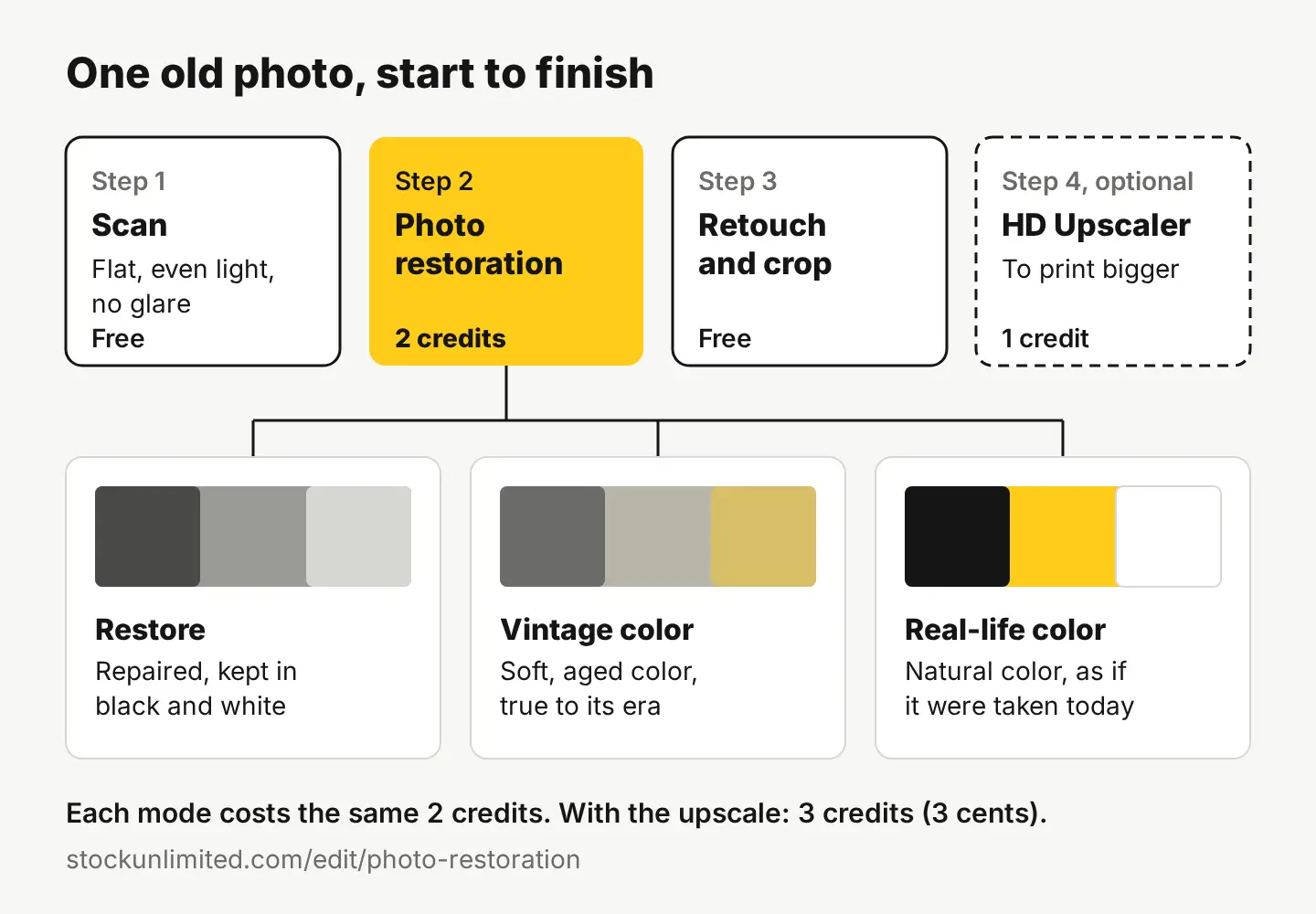
Here’s the whole job with our Photo restoration tool. You can also find it inside the free photo editor as Restore old photo, in the AI menu.
- Open Photo restoration and upload your scan.
- Choose the result you want: Restore (repaired, kept black and white), Vintage color, or Real-life color. More on choosing below.
- Run it. The repair takes about 30 seconds and costs 2 credits, which is 2 cents.
- Compare it with the scan. Zoom in on faces, hands and edges. Check that eyes, hairlines and lettering on signs or shop fronts look like the original, not like a new invention.
- Fix what’s left in the editor with the free tools (the table below).
- Save a full-size PNG to your library or your device, and keep the untouched scan next to it.
If you have a whole shoebox to get through, scan everything first, then restore in a batch. You’ll get into a rhythm and spot which photos need extra attention.
Restore, Vintage color or Real-life color: which should you pick?
All three repair the damage the same way and cost the same 2 credits. The difference is the color:
| Mode | What you get | Pick it when |
|---|---|---|
| Restore | Repaired and kept in black and white | The photo was always black and white, and you want it as it was: for an archive, a memorial, or a family tree |
| Vintage color | Soft, aged color that looks like a color print from its era | You want color that still feels old, for a framed print or an anniversary gift |
| Real-life color | Natural color, as if the photo were taken today | You want people to feel close to the moment, for a slideshow or a reunion |
Two honest things to know about coloring. First, the colors are the AI’s best estimate: it can’t know that Grandpa’s car was dark green or that the dress was blue. If you know a color, mention it when you share the photo, or keep the Restore version as the record. Second, try more than one mode on your favorite photos. At 2 cents a run, it costs less to compare than to wonder.
What should you fix by hand after restoring?
Usually very little, but a few minutes in the editor makes the difference between “fixed” and “finished.” Everything here is free except the HD Upscaler.
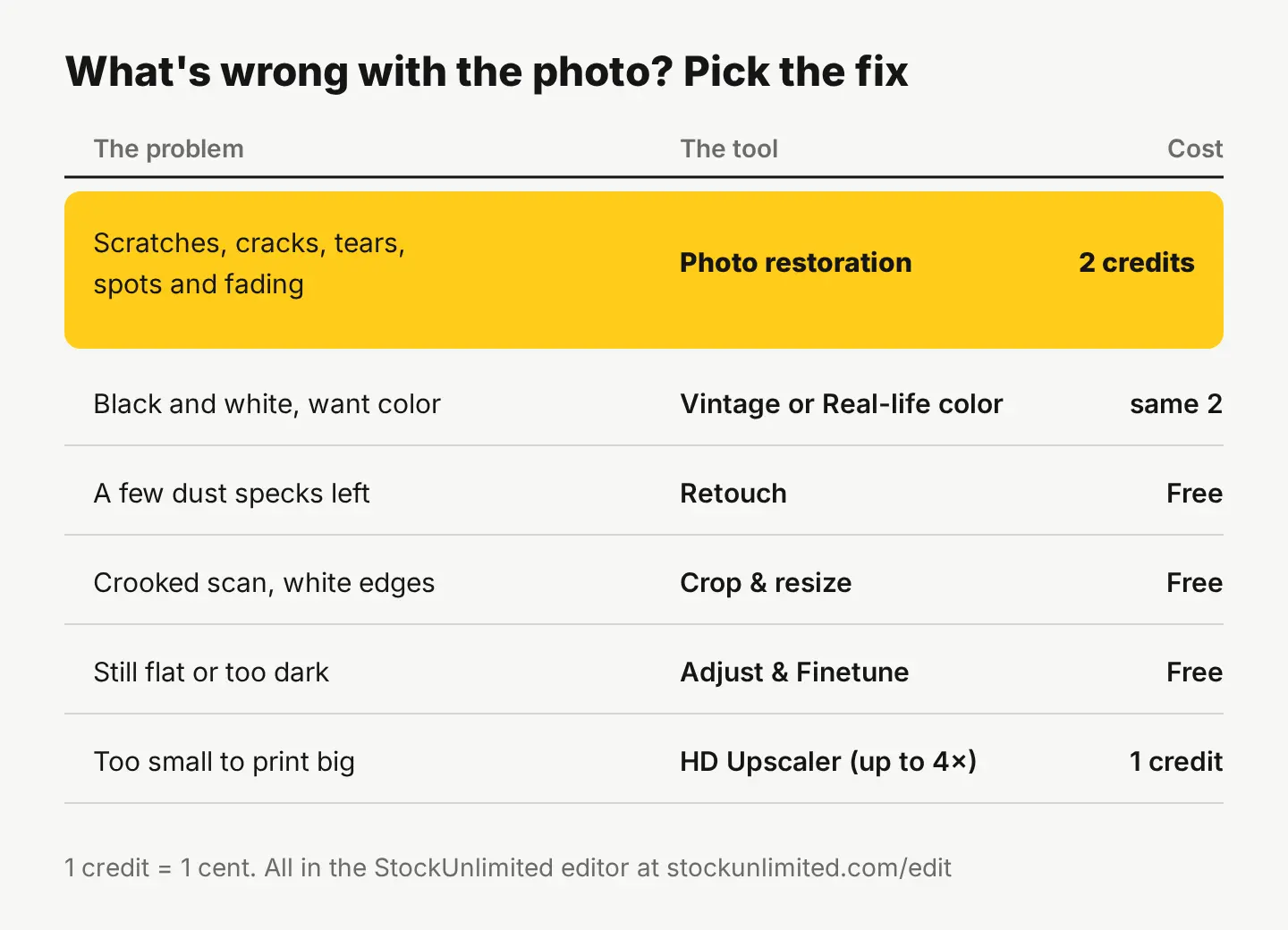
- Retouch for a dust speck or a stray mark the repair missed. Brush over it and it’s gone.
- Magic eraser for something bigger you’d rather not see, like a photo corner mount that got into the scan.
- Crop & resize to straighten a skewed phone shot and trim the white border or the scanner lid. You can lock it to a ratio to match the print size you want.
- Adjust & Finetune if the result is still a bit flat: a gentle curves or contrast change goes a long way. Go easy; too much contrast makes old photos look harsh.
- HD Upscaler if you want to print bigger than the original. It enlarges up to 4× and 4K with fine detail, for 1 credit. For a quick 2× on screen, Quick Upscale 2× in the editor is free.
Then use Resize & export to save PNG for printing or archiving, or JPEG and WebP for sharing. For posting on Facebook or Instagram, the free social media resizer exports one image in the right size for every platform at once.
How much does it cost to restore old photos?
With our tools, 2 credits a photo, and 1 credit is 1 cent. Add 1 credit if you upscale. Here’s what that looks like in practice:
| Job | Credits |
|---|---|
| One photo, restored | 2 (2 cents) |
| One photo, restored and upscaled for a big print | 3 (3 cents) |
| A 50-photo album, restored | 100 |
| The same album in two modes (black and white and color) | 200 |
New accounts get 20 free credits with no card, then 3 free credits every day, so your first 10 restorations cost nothing. If you have a box of family photos to work through, the Monthly plan is $4.99 for 500 credits, enough for 250 restorations. See pricing for the Annual plan.
For comparison, the free editor tools you use afterward (Retouch, Crop & resize, Adjust & Finetune, Quick Upscale 2×) cost nothing and add no watermark.
Your next step
Pick the one photo in your family that everyone would want back: the wedding portrait, the old house, the grandparent nobody has a good picture of. Scan it tonight at 600 dpi or in daylight with your phone, run it through Photo restoration in Restore mode, and then try Real-life color on the same scan. Put the two side by side and decide which one goes in the frame.
Want to bring the restored photo to life for a family slideshow? Bring a photo to life turns one still into a short clip, from 50 credits.
Questions people ask
- Will AI restoration change the faces in my photo?
- It shouldn't: our Photo restoration repairs the damage while keeping faces as they were. Always compare the result with your scan at full zoom, especially eyes and hairlines, before you print or share it.
- Can I restore a photo that's missing a piece?
- Small tears and cracks repair well. If a large piece is gone, any tool can only guess what was there, so check the result carefully and keep the original scan as the honest record.
- Should I keep the original scan after restoring?
- Yes. Save the untouched scan as a PNG next to the restored version. It's your reference if you want to try another mode later, and it's the true record of the photo.
- Can I restore old photos on my phone?
- Yes. Photograph the print in daylight without the flash, shooting straight down, then open the shot in Photo restoration in your phone's browser. A flatbed scan still gives more detail for big prints.
Keep reading
 Photo editingHow to change the background of a photo: 3 ways comparedCut it out for free, blend it into a real scene, or describe a new one with AI. A real before and after, costs side by side, and iPhone tips.
 Photo editingHow to remove a white background from an image, freeCut out the subject with a free background remover and save it as a PNG. Steps, the white-halo fix, and a real background swap example.
 Photo editingHow to change the season in a photo with AIName the season, say what changes and what stays, and one AI edit turns summer into fall. A real before and after, the exact prompts and a season cheat sheet.