How to change the background of a photo: 3 ways compared
Cut it out for free, blend it into a real scene, or describe a new one with AI. A real before and after, costs side by side, and iPhone tips.
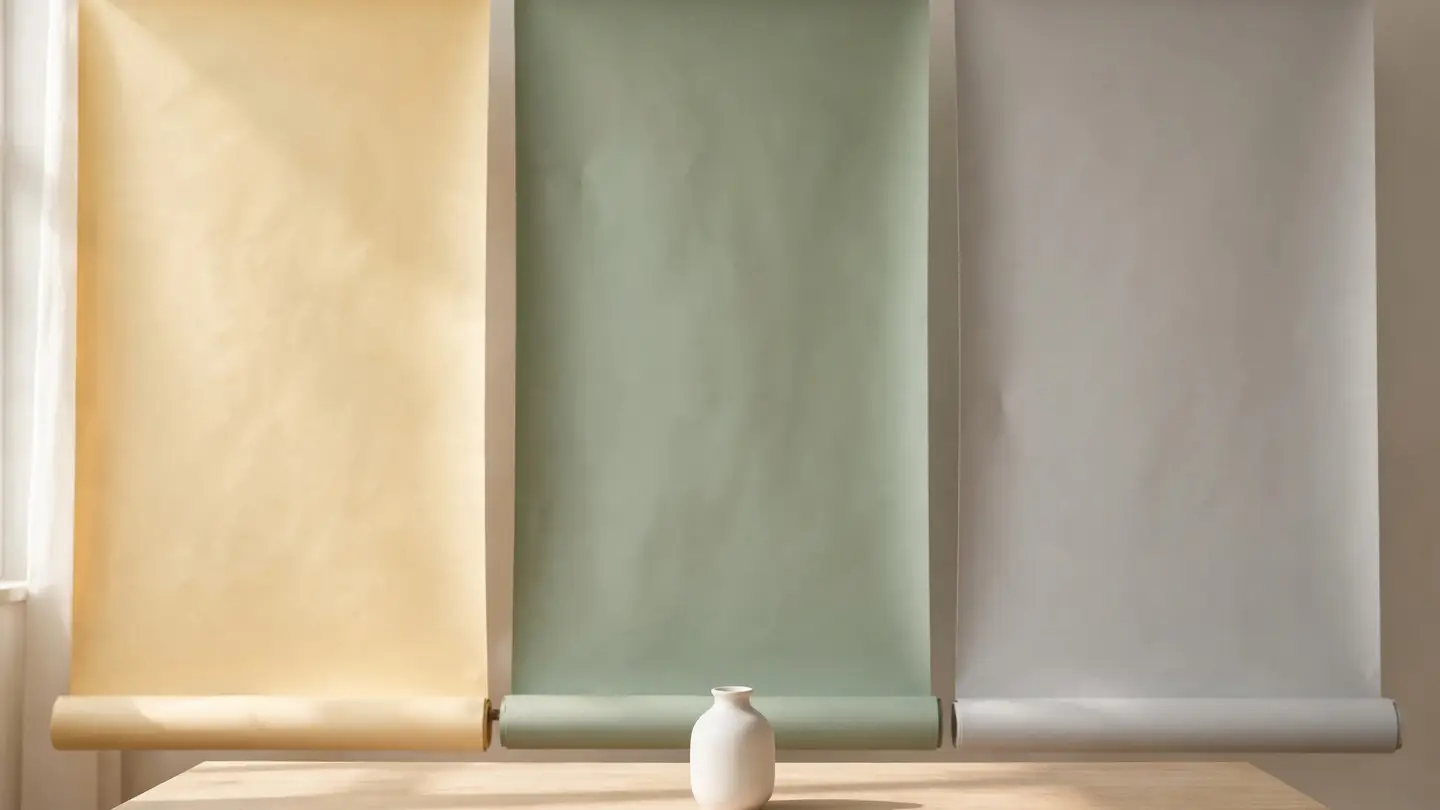
To change the background of a photo, you either cut the subject out and put something new behind it, or you tell an AI editor what the new background should be and let it repaint everything around the subject. In StockUnlimited you can do the first for free with Remove background, blend a subject into a real stock scene with Change background, or type one sentence into Edit by prompt for 1 credit.
This guide compares those three ways side by side, shows a real before and after we made from a licensed stock photo, and answers the questions people ask most: a plain color background, iPhone, and blurring instead of replacing.
What are the ways to change a photo’s background?
There are three, and they suit different jobs. Here’s how they compare on cost, effort and how real the result looks.
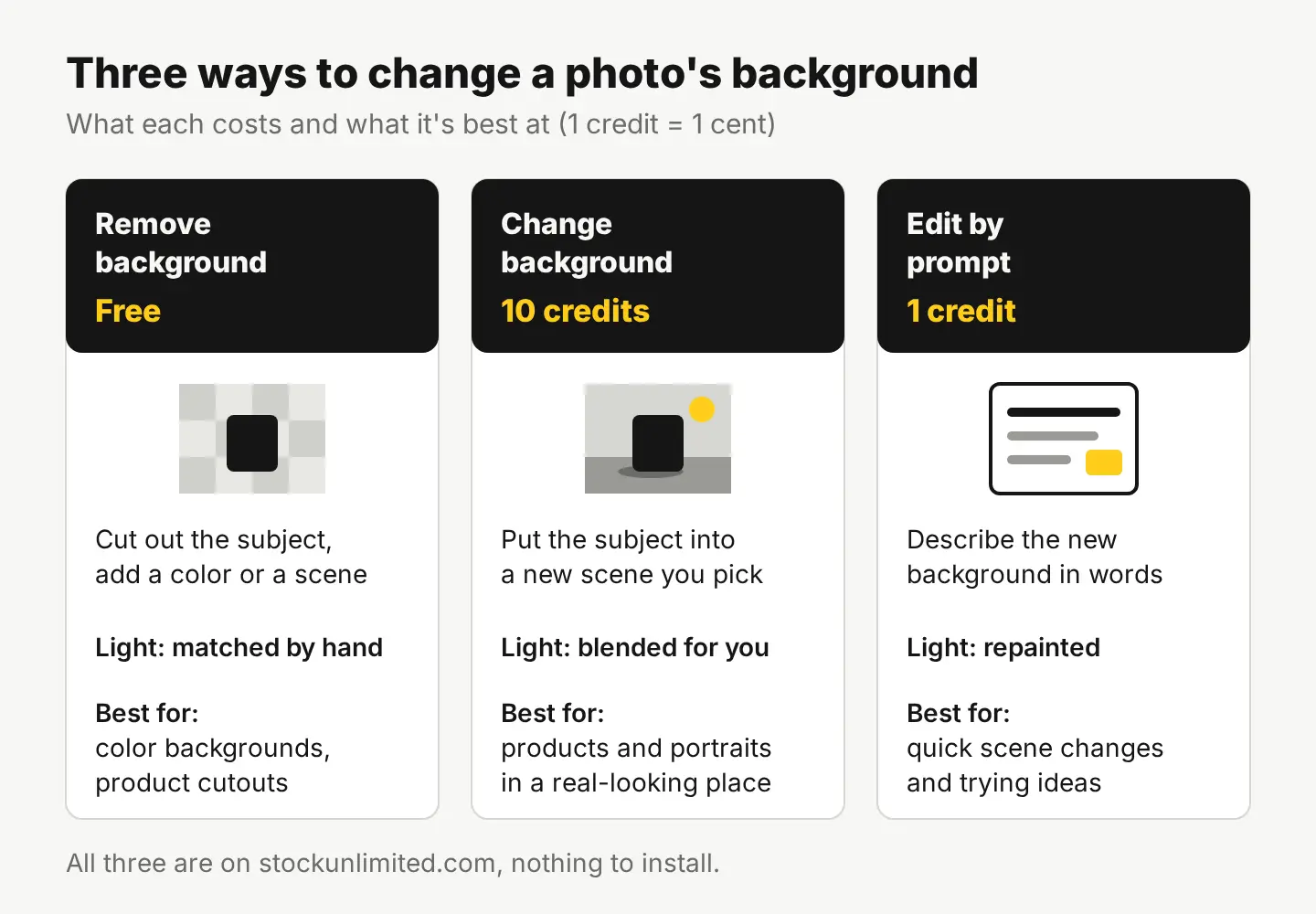
| Remove background + new fill | Change background | Edit by prompt | |
|---|---|---|---|
| Cost | Free, no watermark | 10 credits ($0.10) a blend | 1 credit (1 cent) an edit |
| What you do | Cut out the subject, then add a color or a scene | Pick a new scene for your subject | Describe the new background in words |
| Light and shadows | Stay as they were; you match them by hand | Blended so it looks like one photo | Repainted to fit the new scene |
| Subject | Kept exactly, pixel for pixel | Kept, with light adjusted | Redrawn; check small details |
| Best for | White or color backgrounds, product cutouts, logos | Product and portrait photos in a believable setting | Quick scene changes and ideas |
A simple rule: if the new background is a flat color, cut it out for free. If it’s a real place and the photo has to look natural, use Change background or Edit by prompt.
How to change the background of a photo with Edit by prompt
Here’s a real example. We started with a licensed stock photo from our catalog: a gray cup on a wooden table against a plain white wall. It’s shown as it came, unedited.

We opened it in the free photo editor and typed this into Edit by prompt:
Replace the plain white wall behind the cup with a bright kitchen in soft morning light: a window with green potted herbs on the sill, slightly out of focus. Keep the gray cup, the saucer, the wooden table and the camera angle exactly as they are, and let the window light fall on the cup naturally.

It’s the same speckled cup, the same saucer and the same dark wooden table. The wall became a kitchen, out of focus the way a real background would be behind a close-up, and the light on the cup and table now comes from that window. That last part is what a plain cut-and-paste can’t do on its own.
One thing to notice: the edit framed the cup a little closer than the original, even though the prompt asked to keep the angle. That’s typical of AI edits, because the whole image is redrawn. If the exact framing matters, crop the result to match, or use a cutout method instead.
The steps:
- Open your photo in the editor. It opens JPG, PNG, WebP, GIF and BMP files, or any image in your StockUnlimited library.
- Save a clean copy of the original first, so you can always go back.
- Choose Edit by prompt and write the prompt in three parts: what the new background is, what stays exactly as it is, and how the light should fall.
- Check it at 100% zoom. Look at the edges of the subject, handles and thin parts, and anything with text or straight lines.
- Export with Resize & export as PNG, JPEG, WebP or PDF.
If it’s close but not right, run a small second edit on the result (“make the window a little less bright”) instead of starting over. For more on wording, see how to write AI image prompts that get what you want.
How can I change the background color of a photo for free?
Cut the subject out, then fill in the color. No AI edit and no credits needed:
- Open the photo in our free background remover. It makes a transparent PNG in seconds, and your photo is never uploaded.
- In the editor, Remove background can also drop in a color or a new scene directly, so you can do it in one place.
- Pick the color. Use your brand color, or plain white for marketplaces that ask for it.
- Export with Resize & export, or send it through the free social media resizer for every platform in one zip.
A flat color works best for product photos, profile pictures and anything going on a marketplace. If the original background is white and you only want it gone, our guide on how to remove a white background from an image covers the tricky parts, like white products on white.
When should you use Change background instead?
Use Change background when the subject has to look like it was really photographed in the new place: a product on a kitchen counter, a portrait in an office, a bottle on a beach. You put your subject into a new scene, and it blends the light and shadows so the result reads as one photo. It costs 10 credits a blend.
The difference from a free cutout is the light. A cutout pasted onto a sunny beach still has the soft indoor light it was shot in, and no shadow under it, so it looks pasted. Change background adjusts both.
The difference from Edit by prompt is control. With Edit by prompt you describe a background and the AI invents it. With Change background you choose the scene, so you know what you’ll get.
How do you change a photo background on iPhone?
The iPhone can cut out a subject, but it can’t put it on a new background by itself. In the Photos app, touch and hold the subject until an outline appears, then choose Copy, Share or Add Sticker. Apple’s guide notes that you can’t paste the subject onto another photo (Apple Support: lift a subject from the photo background).
So to actually swap the background, take the photo to a browser-based editor like ours and use any of the three ways above. The editor and the background remover run in the browser, with nothing to install.
Can you just blur the background instead?
Yes, and for portraits it’s often the better choice. If the background is messy but not wrong, Portrait blur in the editor blurs everything behind the person, with an adjustable amount, for free. It keeps the real place, which matters when the photo is of a real event or location. For a stray object or two, the Magic eraser removes them instead; see how to remove unwanted objects from a photo.
What should you check before you use the new photo?
- Light direction. Shadows on the subject should come from the same side as the light in the new background.
- Edges. Hair, fur, glass and thin handles are where cutouts fail. Zoom in.
- Honesty. A new background for an ad or a social post is fine. A product listing, a rental or anything a buyer relies on should show the real thing, so don’t use a new background to hide a flaw or invent a place.
- The license. Editing doesn’t change the license on a StockUnlimited stock photo, but the legal protection of up to $5,000 covers the original photo, not what an edit adds. AI-made parts can be used commercially but carry no legal protection. Details are on our license page.
Your next step
Take one product or profile photo you already use and try two versions: a free color background with Remove background, and a scene with Edit by prompt. You get 20 free credits when you sign up, no card, then 3 free credits every day, so the AI version costs you nothing to test. Open the free photo editor and start with the photo you post most.
Questions people ask
- Does changing the background lower the photo's quality?
- A cutout keeps the subject as it was. If the final image is too small for print or a big screen, run it through the HD Upscaler afterward, up to 4x and 4K for 1 credit.
- Can I change the background of a photo with people in it?
- Yes. For portraits, Change background or a simple color fill keeps the person as they are. With Edit by prompt, say that the person must stay exactly the same, and check the face and hands at full size.
- What file format keeps a transparent background?
- PNG or WebP. JPEG has no transparency, so a cutout saved as JPEG gets a solid background again.
- Can I use a stock photo as the new background?
- Yes. Licensed stock photos are 10 credits ($0.10) each and cover commercial use, ads and products. Editing or combining them doesn't change the license.
Keep reading
 Photo editingHow to remove a white background from an image, freeCut out the subject with a free background remover and save it as a PNG. Steps, the white-halo fix, and a real background swap example.
 Photo editingHow to change the season in a photo with AIName the season, say what changes and what stays, and one AI edit turns summer into fall. A real before and after, the exact prompts and a season cheat sheet.
 Photo editingHow to remove unwanted objects from a photo, freeBrush over it with the free Magic eraser, or describe the change with Edit by prompt for 1 credit. Which tool fits which job, step by step, with a real example.