How to remove a white background from an image, free
Cut out the subject with a free background remover and save it as a PNG. Steps, the white-halo fix, and a real background swap example.

To remove a white background from an image, open it in a free background remover, let it cut out the subject, and download the result as a PNG, which keeps the empty area transparent. If you don’t actually need transparency, just a different backdrop, you can swap the white for a new scene in one step instead.
This guide shows how to remove a white background from an image for free, step by step in the StockUnlimited tools, how to fix the white halo around edges, which file format to save in so the white doesn’t come back, and a real example we made: a mug on white, moved onto a kitchen counter with Edit by prompt.
What’s the fastest way to remove a white background?
Use a dedicated background remover. It finds the subject (a product, a person, a pet, a logo) and clears everything behind it, white or not. That’s faster and cleaner than picking the white by color, because real “white” backgrounds are rarely one shade: they’re full of soft shadows and light gray.
Here’s how to do it with our free background remover:
- Open the Remove background tool and add your photo. It runs in your browser, so the photo never leaves your device.
- Wait a few seconds while it cuts out the subject.
- Check the edges at full size, especially hair, handles and anything thin.
- Download the result as a transparent PNG.
It’s free, and there’s no watermark on the result.
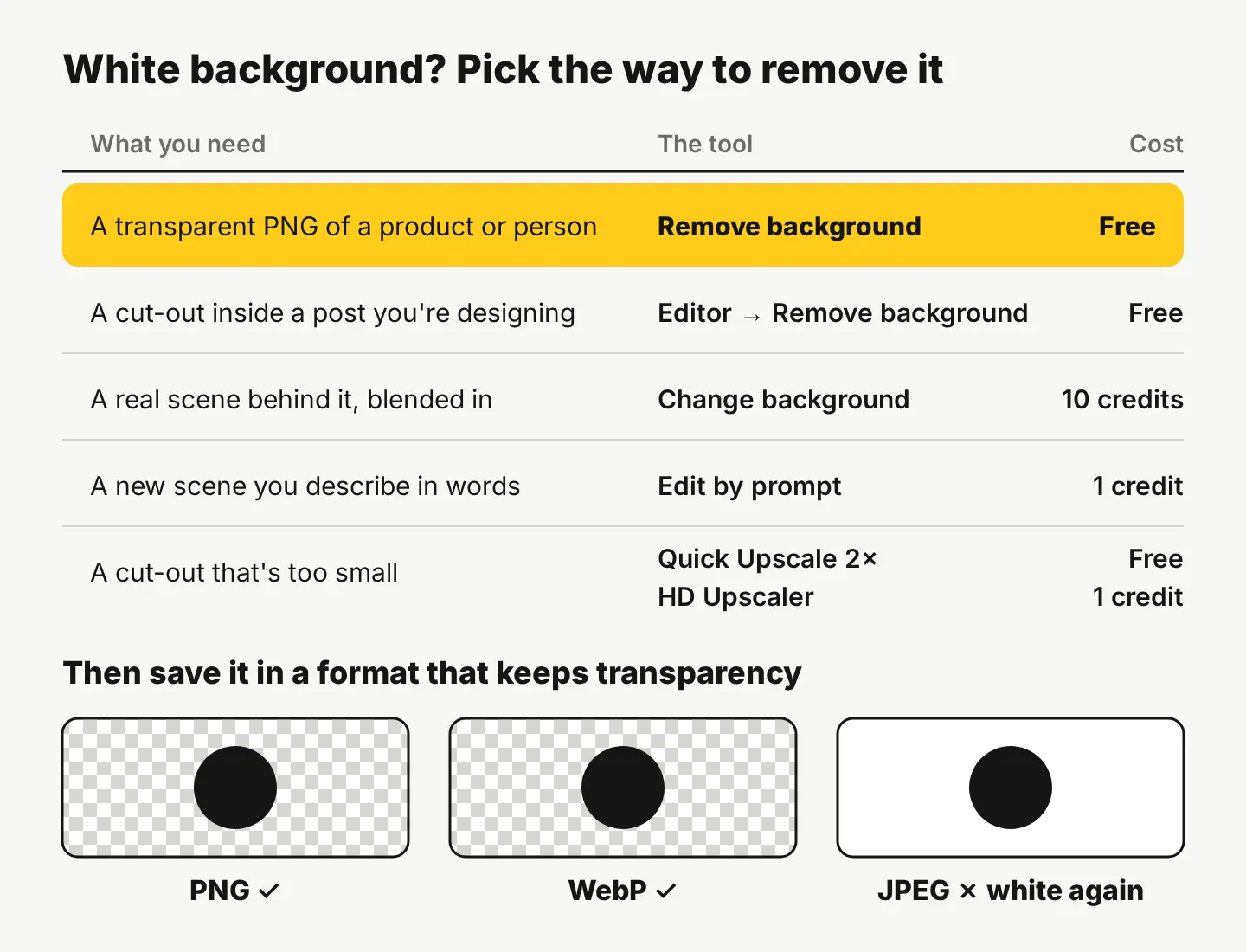
If you’re already building a post in the free photo editor, you don’t need a separate step. Pick Remove background from the editor’s tools, and you can leave the cut-out transparent, drop in a solid color, or put a new scene behind it on its own layer.
How do you make a PNG background transparent?
A transparent background only survives if the file format can store it. This is where most “it’s still white!” problems come from: the cut-out worked, but it was saved as a JPEG.
| Format | Keeps transparency? | Use it for |
|---|---|---|
| PNG | Yes | Logos, product cut-outs, anything you’ll edit again |
| WebP | Yes | Websites and shops, where smaller files load faster |
| JPEG | No, the clear area is filled with a solid color | Finished photos with a background |
Google documents that WebP supports transparency in both its lossless and lossy modes (Google’s WebP page). JPEG has no transparency at all, so a “transparent JPEG” you download is usually a gray checkerboard painted into the pixels.
In the StockUnlimited editor, Resize & export saves as PNG, JPEG, WebP or PDF. Choose PNG or WebP for a cut-out. A quick test: place the file on a dark slide or a colored post. If a white box appears around it, the transparency didn’t make it.
How do you get rid of the white halo around the edges?
A thin white or gray fringe around your subject is the most common flaw. It shows up when the cut-out goes onto a dark or colored background, because the edge pixels still carry a little of the old white. Fixes, in order:
- Check on a dark color first. Put the cut-out on a dark layer in the editor before you export, so you see the halo before your customers do.
- Brush the leftovers away. Use the Magic eraser on a stray patch of white, for example inside a mug handle or between someone’s arm and body. More on that tool in our guide to removing unwanted objects from a photo.
- Start from a bigger image. Small images give soft, chunky edges. Run Quick Upscale 2× in the editor (free) or the HD Upscaler (up to 4× and 4K, 1 credit) first, then remove the background.
- Watch white inside the subject. A white mug, white sneakers or white text in a logo can get treated as background. Check those areas at full size and restore them before you save.
What if you want a new background instead of a transparent one?
Often the real goal isn’t transparency. You want the product somewhere nicer than a white sweep. Then skip the cut-out and replace the background in one step.
We tried this with an image we made with our AI image generator (Create, 1 credit): a plain terracotta mug on a white studio background.

Then we ran Edit by prompt (1 credit) on it, with this exact prompt:
Replace the white background with a light oak kitchen counter and a softly blurred, sunny kitchen behind it. Keep the mug, its shape, color and handle, and the camera angle exactly as they are, and give the mug a natural shadow on the counter.

Two things made it work. The prompt said what to change and then listed what to keep, and it asked for a shadow, which is what makes an object look like it sits on a surface rather than floating in front of it.
You have two options for this:
| Tool | Cost | Best when |
|---|---|---|
| Edit by prompt | 1 credit | You can describe the scene in a sentence |
| Change background | 10 credits | You want a real stock background, with light and shadows blended to match |
If you sell products, Product Studio goes a step further: one phone photo becomes 4 studio-quality shots in any of 33 scenes, for 10 credits.
Can you remove a white background in Word, PowerPoint or Google Slides?
Yes, for simple images. In Microsoft Office, Set Transparent Color makes one color clear when you click it. Microsoft notes it works best on simple, solid-color pictures like clip art, and that areas that look like one color can contain subtle variations (Microsoft’s guide to making a picture transparent). Office also has a Remove Background button for photos.
The catch with any “pick a color” tool: it clears every pixel of that color, including white inside your subject, and it leaves soft gray shadows behind. For a photo of a product or a person, cut it out with a background remover, save it as a PNG, and insert that PNG into your slide or document. It looks clean on any slide color.
Your next step
Take one product photo or logo on white, run it through the free background remover, and save it as a PNG. Drop it on a dark background to check for a halo before you use it anywhere.
If you’d rather have a scene than transparency, try one Edit by prompt. New accounts get 30 free credits with no card, then 3 free credits every day, so your first edits cost nothing.
Questions people ask
- Does removing the background lower the image quality?
- No, the subject keeps its pixels. Quality drops only if you save as a heavily compressed JPEG or start from a very small image, so upscale small images first and save the cut-out as PNG.
- Can I remove a white background on my phone?
- Yes. The free background remover runs in the browser, so you can open it on a phone, add a photo, and download the transparent PNG.
- Why is my transparent image showing a black background?
- Some apps and previews show transparent areas as black or white. Place the PNG on a colored background in a design app or the editor: if it blends in, the transparency is there.
- Can I remove the background from a stock photo I licensed?
- Yes. Editing doesn't change the license, so a cut-out of a licensed photo can go in ads, posts and products. The legal protection covers the original photo, not your edits.
Keep reading
 Photo editingHow to change the season in a photo with AIName the season, say what changes and what stays, and one AI edit turns summer into fall. A real before and after, the exact prompts and a season cheat sheet.
 Photo editingHow to remove unwanted objects from a photo, freeBrush over it with the free Magic eraser, or describe the change with Edit by prompt for 1 credit. Which tool fits which job, step by step, with a real example.
 By industryWhat photos does a café or bakery need? Shot list and sizesYour own photos for the menu and the shop, stock or AI images only for mood and backgrounds. The full shot list, sizes, and a month of images for 62 credits.