AI image editing prompts: 20 to copy, 3 tested on a real photo
Say what to change, describe it, and list what stays. 20 AI image editing prompts to copy, plus 3 real before-and-after edits on one product photo.

The best AI image editing prompts do three things: say what to change, describe the result in concrete words, and list what must stay exactly as it is. Below are 20 copy-ready AI image editing prompts sorted by job, plus three we ran on one real product photo so you can see what each kind of edit actually does.
Want to try them on your own photo? Open our free photo editor and use Edit by prompt: each edit costs 1 credit, and you get 50 free credits when you sign up, no card needed.
What makes an AI image editing prompt work?
An editing prompt is different from a prompt that creates an image from nothing. The photo already decides the layout, the angle and the light, so your words only need to cover the difference. Most edits that go wrong fail in one of two ways: the request was vague (“make it nicer”), or nothing told the AI what to leave alone, so it changed things you liked.
Every prompt on this page uses the same three-part pattern:
- The change. One kind of edit per prompt: “Change the color of…”, “Add…”, “Replace…”.
- The detail. Concrete words for the result: “deep forest green with a matte finish,” not “a nicer color.” Say where things go: “beside the candle,” “in the background.”
- The keep line. “Keep the [things you care about] and the camera angle exactly as they are.” This is the line people skip, and it’s the one that stops the AI from redesigning your whole photo.
If you want the wider picture of how editing from a photo works, our guide to image to image AI explains it with a room example. This page is the cheat sheet.
Three AI image editing prompts, tested on one photo
We started with a licensed stock photo from our catalog: a small white candle on a burlap runner. It’s a typical small-shop product shot: clean, bright and a little plain for the holidays. Here it is unedited.
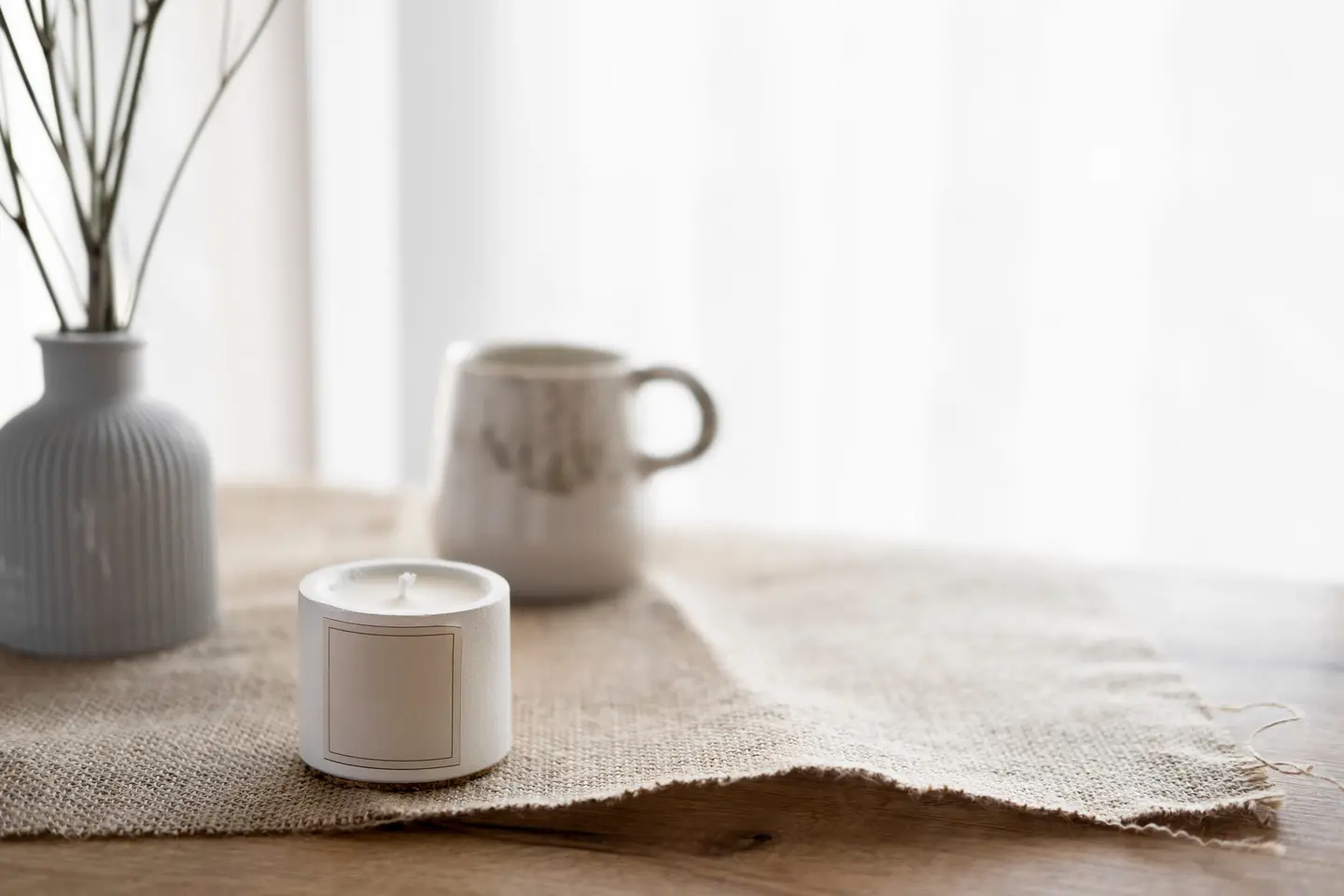
Then we ran three separate edits in Edit by prompt, each one from the original photo.
Edit 1: add holiday props and light the candle
Style this scene for the winter holidays: add a few fresh pine sprigs and two small red berries on the burlap runner beside the white candle, a string of tiny warm fairy lights softly out of focus in the background, and light the candle with a small steady flame. Keep the white candle, its shape and label area, the burlap runner, the vase, the mug and the camera angle exactly as they are.

The pine, berries and fairy lights landed where we asked, and the candle is lit. The blank label area survived because we named it in the keep line, which matters if you plan to add your own label or text afterward.
Edit 2: recolor the product
Change the color of the small candle holder in the front from white to a deep forest green with a matte finish. Keep the wax top, the wick, the burlap runner, the vase, the mug, the light and the camera angle exactly as they are.
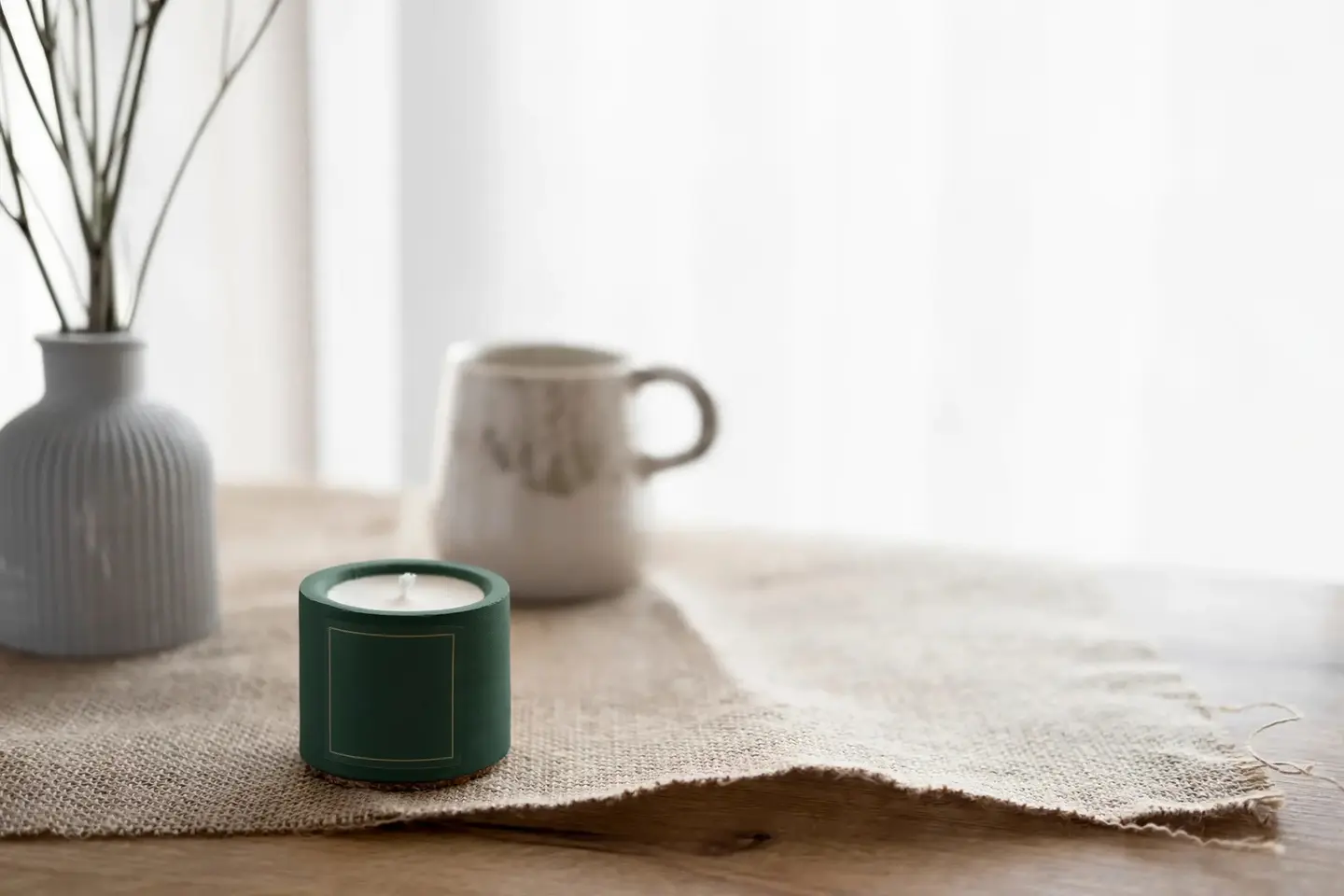
Only the holder changed. The thin label border stayed, and the wax and wick are still white because we said so. Naming “the small candle holder in the front” mattered: there’s a white vase and a white mug in the frame too, and a vague “make it green” could have caught them.
Edit 3: swap the surface
Replace the burlap runner and the wooden table with a smooth white marble countertop with soft grey veins. Keep the white candle, the vase with branches, the mug, the bright window light and the camera angle exactly as they are.
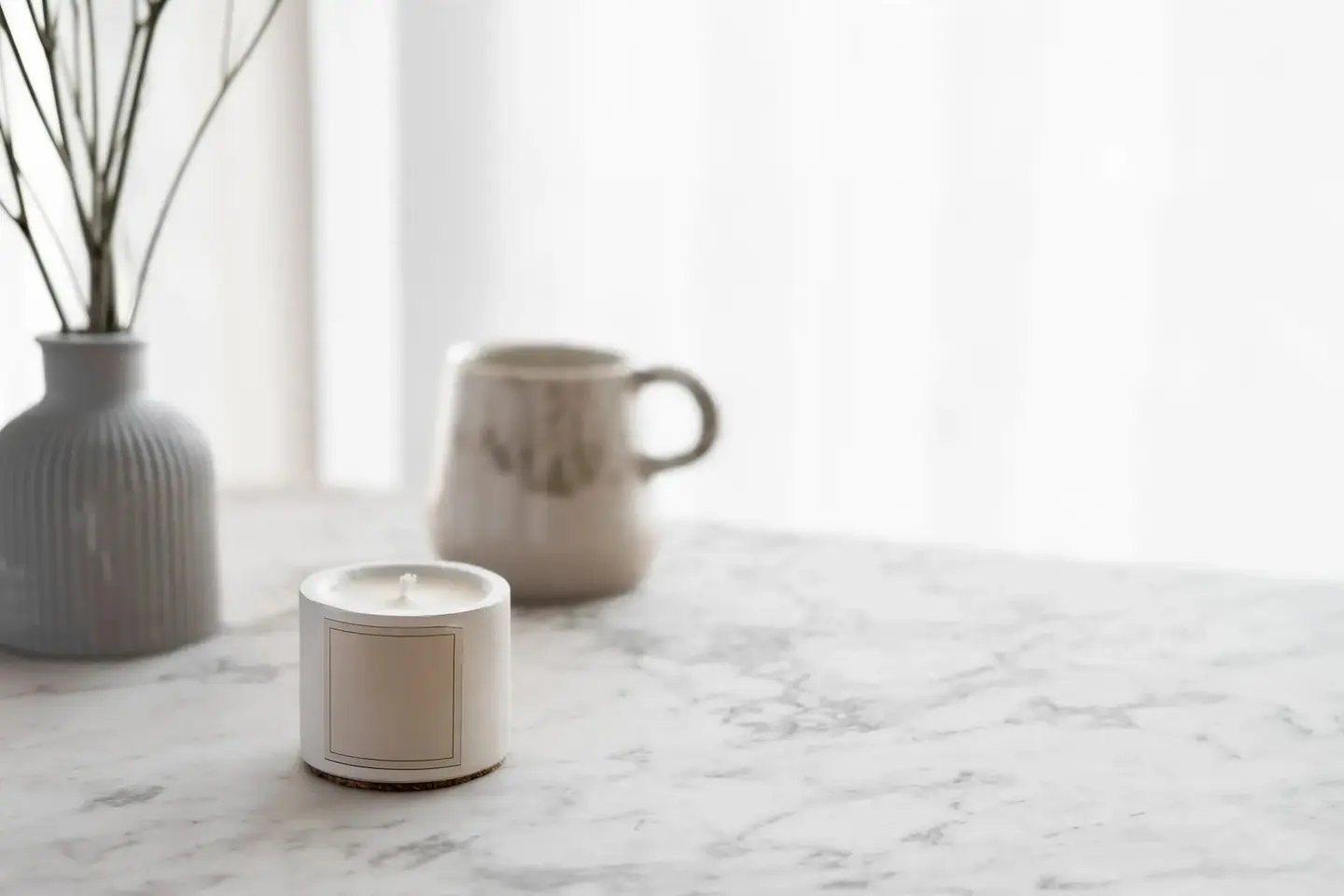
A new surface changes the whole feel of a product shot, from rustic to clean and minimal, without a reshoot. The three edits together cost 3 credits, 3 cents.
20 AI image editing prompts to copy
Swap the words in [brackets] for your own. Each one already has its keep line.
| Job | Prompt to copy |
|---|---|
| Holiday props | Add [a few pine sprigs and red berries] on the [table] beside the [product]. Keep the [product] and the camera angle exactly as they are. |
| Lit candle or lamp | Light the [candle] with a small steady flame and add a soft warm glow around it. Keep everything else exactly as it is. |
| Fairy lights | Add a string of tiny warm fairy lights softly out of focus in the background. Keep the [product] and the foreground exactly as they are. |
| Recolor a product | Change the color of the [object] from [white] to [deep forest green] with a [matte] finish. Keep the [label], the [other objects] and the light exactly as they are. |
| Recolor a wall | Paint the wall behind the [product] a [soft sage green]. Keep the [product], the furniture and the light exactly as they are. |
| New surface | Replace the [table] with a [white marble countertop with soft grey veins]. Keep the [product], the light and the camera angle exactly as they are. |
| Golden hour | Make the light a warm late-afternoon glow coming from the [left], with longer soft shadows. Keep every object exactly where it is. |
| Evening mood | Make it evening: a dark blue sky outside the window and warm lamplight in the room. Keep the furniture and the camera angle exactly as they are. |
| Snow outside | Show fresh snow falling outside the window. Keep everything inside the room exactly as it is. |
| Change the season | Change the season to [mid-autumn]: [orange and gold leaves on the trees]. Keep the [buildings, path] and the camera angle exactly as they are. |
| Tidy a scene | Remove the [papers and cables] from the [desk]. Keep the [laptop, lamp and plant] exactly as they are. |
| Add a prop | Add a [small stack of wrapped gift boxes in kraft paper] on the [right side of the table]. Keep the [product] exactly as it is. |
| Gift wrap | Wrap a [kraft paper ribbon] around the [box]. Keep the [product’s shape] and the background exactly as they are. |
| Food steam | Add a little soft steam rising from the [cup of coffee]. Keep the cup, the table and the light exactly as they are. |
| Fresh flowers | Put [a small bunch of white tulips] in the [empty vase]. Keep the vase, the table and the light exactly as they are. |
| Clean backdrop | Make the background a plain [warm beige] studio wall with soft even light. Keep the [product] and its shadow exactly as they are. |
| Cozier styling | Add a [chunky knit blanket] folded on the [chair]. Keep the room and the camera angle exactly as they are. |
| Rainy window | Add raindrops on the window glass and a grey rainy sky outside. Keep everything inside the room exactly as it is. |
| Restyle a room | Restyle the room as [warm mid-century]: [a rust-orange sofa, a walnut table]. Keep the windows, the walls and the camera angle exactly as they are. |
| Brand color pop | Change the [cushions] to [our brand yellow]. Keep everything else exactly as it is. |
Two prompts to avoid: anything asking for text in the image (add words afterward with the editor’s Text or WordArt tools, where you control spelling and font), and anything about a real person’s face or identity. For people, the free Beautify and Retouch tools are the better fit.
When is a free tool better than a prompt?
Not every edit needs AI. Our editor has free tools that do some jobs more precisely, and one paid tool built for a bigger job.
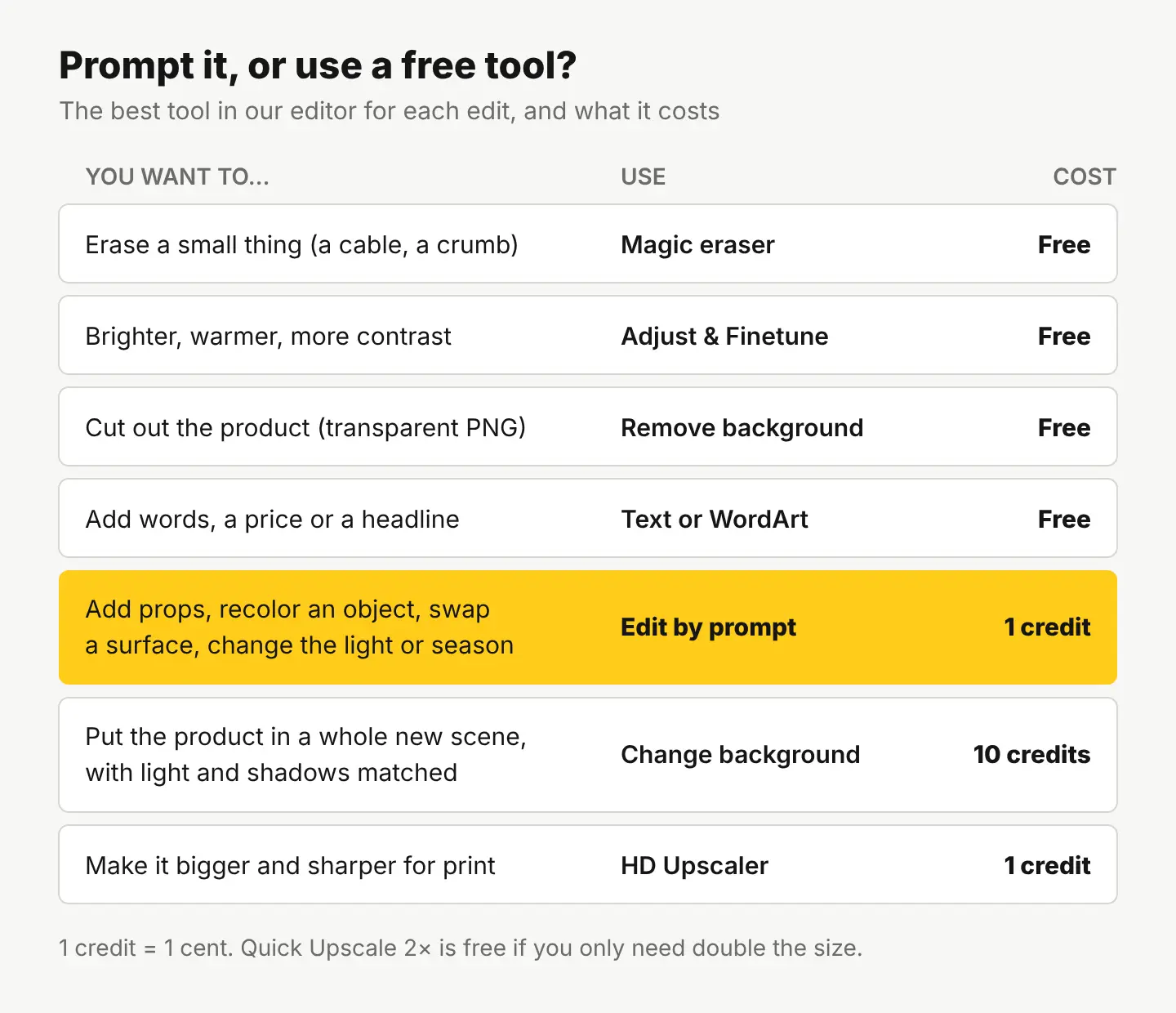
- Removing one small thing? Brush over it with the free Magic eraser. Use a “remove the…” prompt only when there’s a lot to clear.
- Just brighter or warmer? Adjust & Finetune is free and you control the amount exactly.
- Moving the product into a whole new scene? Change background is made for that: it blends the light and shadows so it looks like one photo. It costs 10 credits a blend.
How do you fix an AI edit that’s almost right?
You rarely need to start over. Try these in order:
- Run a short follow-up edit on the result. “Make the berries smaller” or “move the fairy lights further back.” One small change per edit.
- Go back to the original if the first result drifted (an object moved or changed shape). Add that object to the keep line and run it again.
- Be more exact about which object. “The small candle holder in the front” beats “the candle” when there are similar things in the frame.
- Split a big request in two. A new surface and new props in one prompt gives the AI more to get wrong. Do the surface first, then the props on that result.
- Check at 100% zoom before you post: look at edges, labels and straight lines.
Every retry is another credit, so a clear first prompt is the cheapest prompt.
Can you use an edited photo to sell a product?
Yes, with care. Editing doesn’t change the license on a StockUnlimited stock photo, so an edited version can go in ads, posts and products like the original. The legal protection of up to $5,000 covers claims about the original photo, not what your edit added. AI edits are allowed for commercial use but come with no legal protection, and in the U.S. the Copyright Office has said that prompts alone don’t make you the author of what the AI adds. The full terms are on our license page.
The bigger rule is honesty with buyers. Props, light and a new surface set a mood. A recolored product is different: if you sell the candle only in white, a green version in your listing promises something you can’t ship. Use color edits to test ideas or for products that really come in that color. Some platforms label AI edits too; Meta explains how its “AI info” label works on its page about labeling AI content.
Your next step
Pick one product photo you already have and one prompt from the table: the holiday props prompt is a good first try this time of year. Open the free photo editor, choose Edit by prompt, paste it in with your own words in the brackets, and compare the result with the original. Your 50 sign-up credits cover 50 edits, and you get 3 free credits every day after that.
Questions people ask
- How long should an AI image editing prompt be?
- One to three sentences is usually enough: the change, the detail, and a keep line. Longer prompts tend to pack in several edits, which makes it more likely something you didn't want also changes.
- Should I edit the original photo or the last result?
- Start each new version from the original so small errors don't pile up. Edit the last result only for a small follow-up fix, like making one added prop smaller.
- Can I use AI editing prompts on a photo with people in it?
- You can change the scene around people, like the light or the season, but mention them in the keep line. For skin and small flaws, the free Beautify and Retouch tools in the editor are the better fit.
- Do AI edits change the image size or quality?
- Check the result at 100% zoom before you use it. If you need a bigger file for print, run it through Quick Upscale 2× for free or the HD Upscaler for 1 credit.
Keep reading
 Photo editingBest photo editor apps for free: 6 tests before you pickThe best free photo editor exports full size with no watermark and no paywall on daily tools. Six 10-minute tests, run for real, plus what's free.
 Photo editingHow to upscale an image: free 2× or 4K, step by stepCheck the pixels you need, crop, then upscale 2× free or up to 4× and 4K for a cent. The pixel math for prints and screens, and what upscaling can't fix.
 Photo editingHow to resize an image for Instagram without croppingMost photos fit Instagram whole: export them 1080 px wide at their own shape. Exact sizes, what each crop cuts, and fixes for shapes that don't fit.