Best photo editor apps for free: 6 tests before you pick
The best free photo editor exports full size with no watermark and no paywall on daily tools. Six 10-minute tests, run for real, plus what's free.
The best photo editor apps for free are the ones that export your full-size photo with no watermark, keep the tools you use every day outside a paywall, and don’t make you upload a photo you’d rather keep private. Lists of “top 10 apps” change every few months, so instead of another ranking, here are six tests you can run on any free editor in about ten minutes.
We ran them on our own free photo editor, which works in the browser, and you’ll see a real before and after made with its AI tool, plus a table of what’s free and what costs credits. Use the same tests on any phone app or desktop program you’re considering.
What makes a photo editor app actually free?
“Free” on an app store page can mean four different things, and only one of them is free in the way you probably want:
| What “free” means | What you get | The catch |
|---|---|---|
| Free with no limits | Every tool, full-size export, no watermark | Rare; check how the app is paid for |
| Free with a watermark | Every tool | A logo on every export, removed only by paying |
| Free trial | Every tool for a few days | A subscription starts unless you cancel |
| Freemium | The basics free | The tools you need most (background removal, AI, high-res export) are locked |
Freemium isn’t a bad deal if the basics are all you need. The problem is finding out what’s locked only after you’ve spent twenty minutes editing. That’s what the tests below catch.
The best photo editor apps for free: 6 tests to run
Pick one real photo you need to edit this week, such as a product shot, a flyer image or a social post, and run the same six tests in every app you try. Score each one pass or fail.
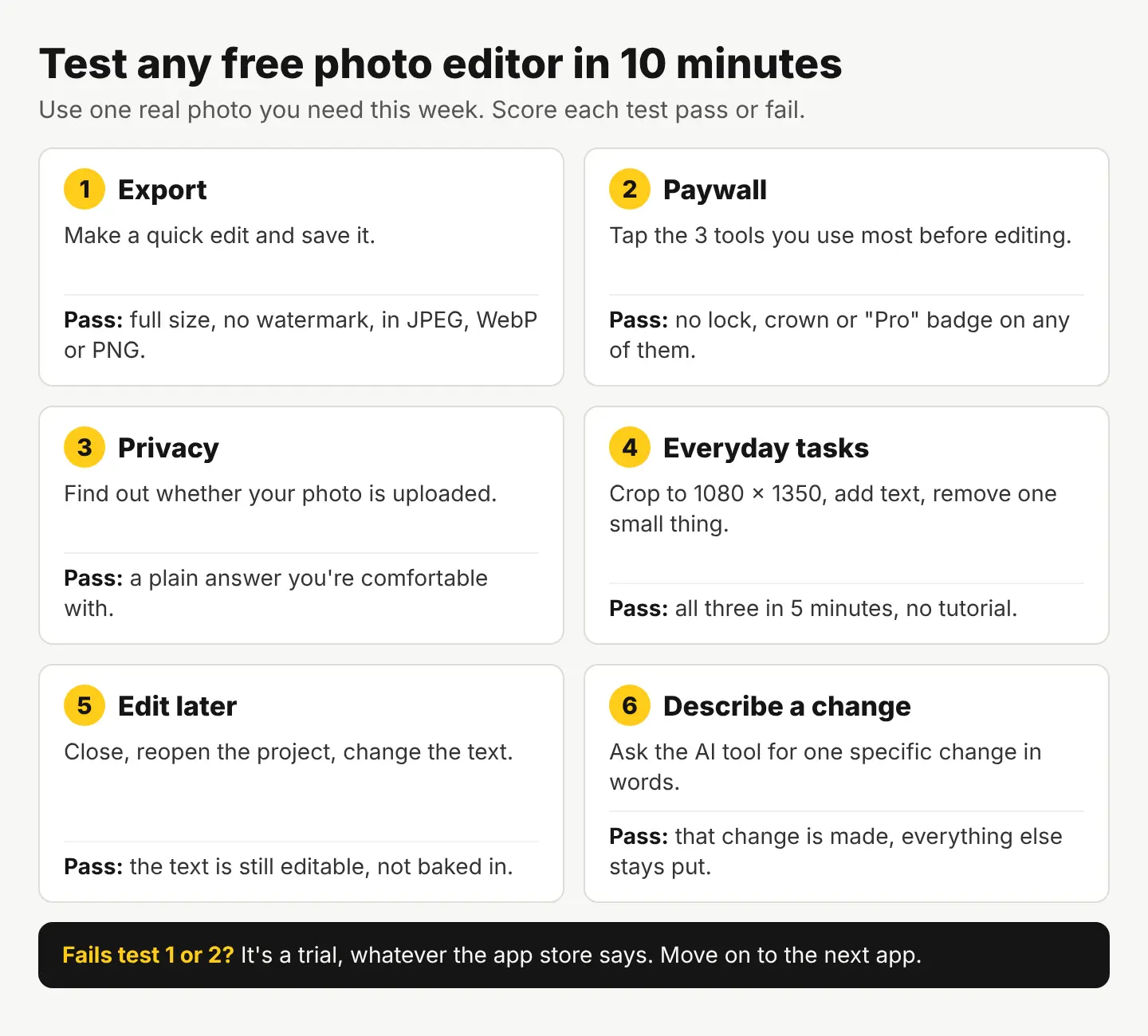
- The export test. Finish a quick edit and save it. Pass: the file is the same size as your original (or bigger), with no watermark, in the format you need: JPEG or WebP for the web, PNG when you’ll keep editing or need a transparent background.
- The paywall test. Before you edit anything, tap through the three tools you use most. Pass: none of them shows a lock, a crown or a “Pro” badge.
- The privacy test. Read what happens to your photo. Pass: the app says plainly whether the photo is uploaded, and you’re comfortable with the answer, especially for client work or unreleased products.
- The everyday-tasks test. Crop to an exact size (1080 × 1350 for an Instagram portrait post), add a line of text, and remove one small distraction. Pass: all three in under five minutes, without a tutorial.
- The edit-later test. Close the app, reopen your project and change the text. Pass: the text is still editable, not baked into the photo.
- The describe-a-change test. If the app has an AI tool, ask it for one specific change in words. Pass: that change is made and everything else stays put.
An app that passes all six is worth learning properly. One that fails the export or paywall test is a trial, whatever the listing says.
Test 6, run for real: one change, described in words
Here’s the describe-a-change test on our editor. We started with a licensed photo from our stock catalog, a gray cup on a wooden table against a plain white wall:

Then we used Edit by prompt with this request, word for word:
Make the wall behind the cup a soft sage green. Keep the cup, the saucer, the wooden table and the lighting exactly as they are.

This is the AI result, not a retouched photo. Look at three things when you judge a test like this: the change you asked for (the wall color), the edges where the change meets the subject (around the cup’s rim and handle), and anything you said to keep (the table grain, the speckles on the cup). Here all three held: the wall is sage, the rim and handle are clean, and the speckles and table are as they were. Score: pass. If any of those slip in your own test, ask again with one more detail, such as “keep the white speckles on the cup”.
Edit by prompt costs 1 credit an edit. Editing doesn’t change the license on a stock photo, but the photo’s legal protection covers the original image only, not your edits.
What’s free in our editor, and what costs credits?
This is the table we’d want for any app before installing it. Everything in the first group is free, with no watermark and nothing uploaded until you save:
| Tool | What it does | Cost |
|---|---|---|
| Crop & resize | Freeform or a locked ratio, at an exact pixel size; rotate and flip | Free |
| Adjust & Finetune | Exposure, contrast, warmth, saturation, curves, per layer or in a selection | Free |
| Filters | One-tap looks, per layer | Free |
| Text and WordArt | Headlines and captions, styled text with gradients, outlines and curves | Free |
| Stickers, Annotate, Frames, Draw | Badges, arrows, callouts, frame shapes, brushes | Free |
| Magic eraser and Retouch | Remove distractions and small flaws | Free |
| Beautify and Portrait blur | Smooth skin, blur the background behind a person | Free |
| Remove background | Cut out the subject for a transparent PNG | Free |
| Quick Upscale 2× | Doubles a small image’s size | Free |
| Layers | Reorder, hide, blend modes, per-layer adjustments | Free |
| Resize & export | PNG, JPEG, WebP or PDF at exact sizes | Free |
| Edit by prompt | Describe a change in words | 1 credit an edit |
| Restore old photo | Repair an old photo, in black and white or color | 2 credits a photo |
A credit is worth 1 cent, and you get 50 free credits when you sign up (no card), then 3 free credits every day. The bigger AI jobs live on their own pages: the HD Upscaler goes up to 4× and 4K for 1 credit, and Change background blends a subject into a new scene for 10 credits. Full plans are on the pricing page.
Phone app, desktop program or browser editor?
The other choice to make before testing is where you’ll edit, because it narrows the list fast:
- A phone app is quickest for photos you took on that phone and post straight to social. Small screens make precise work (selections, small text) slower.
- A desktop program suits big batches, RAW files from a camera and print work, but you install it and it stays on one computer.
- A browser editor runs on any laptop or desktop with nothing to install, which helps on a work computer or a shared one. Our editor is one of these: drafts autosave with every layer editable, so the edit-later test passes on the same machine.
Whichever type you pick, check the export size against where the image is going. For Instagram, a feed photo keeps its full shape when its aspect ratio is between 1.91:1 and 4:5, and wider photos are sized down to 1080 pixels wide (Instagram Help Center). Exporting at those sizes yourself means the app doesn’t resize it for you.
Which free editor tasks trip people up most?
These are the jobs where free apps most often hit a paywall or a poor result, and how to handle each one in our editor:
- Removing a background. Use our free background remover, which makes a transparent PNG and never uploads your photo. Save as PNG; a JPEG fills the transparent area with white.
- Removing a small object. Brush over it with the Magic eraser. For something large or close to your subject, Edit by prompt does better. Our guide to removing unwanted objects from a photo compares the two.
- Text that’s hard to read. Add a color box behind it in the Text tool, or darken that part of the photo with Adjust & Finetune inside a selection.
- One image for every platform. The free social media resizer exports one design for Instagram, Facebook, X, LinkedIn, Pinterest, YouTube, TikTok and A4 in one zip. Open each file afterward to check nothing important was trimmed.
- A photo that’s too small. Run Quick Upscale 2× before you crop, not after, so you don’t enlarge the crop’s lost detail.
Your next step
Take the photo you need this week and run the six tests on two editors side by side: the app you already have and one other. The first one to fail the export or paywall test is out. If you want to try ours, open the free editor, crop your photo to an exact size, add your text and export it; you’ll know in five minutes whether it fits the way you work.
Questions people ask
- Is there a completely free photo editor with no watermark?
- Yes. Our browser editor is free and unlimited with no watermark, including crop, text, filters, Magic eraser, Remove background and Quick Upscale 2×. Only the AI tools Edit by prompt (1 credit) and Restore old photo (2 credits) use credits.
- Do I need to sign up to use a free photo editor?
- It depends on the app, so check before you start editing. Signing up for ours gives you 50 free credits with no card, then 3 free credits every day, for the AI tools.
- Can I use a free photo editor on a phone?
- Phone apps are quickest for photos you post straight to social. Our editor runs in a browser and is easiest on a laptop or desktop, where precise work like selections and small text is faster.
- Does editing a stock photo change its license?
- No. Editing doesn't change the license on a stock photo you've licensed, but the legal protection covers the original photo only, not your edits.
Keep reading
 Photo editingHow to upscale an image: free 2× or 4K, step by stepCheck the pixels you need, crop, then upscale 2× free or up to 4× and 4K for a cent. The pixel math for prints and screens, and what upscaling can't fix.
 Photo editingHow to resize an image for Instagram without croppingMost photos fit Instagram whole: export them 1080 px wide at their own shape. Exact sizes, what each crop cuts, and fixes for shapes that don't fit.
 Photo editingHow to restore old photos: scan, repair and colorizeScan the print, let AI repair scratches, cracks and fading, then touch up by hand. Step by step, with scanning tips and real costs: 2 cents a photo.