Photo to video AI free: how to turn one photo into a clip
Your sign-up credits cover a free 6-second AI clip. Which photos animate well (2 examples), how to plan the motion, real costs, and a free finish.

Photo to video AI turns one still photo into a short clip: steam rises, leaves drift, the camera eases in. You can do it free: the 50 credits you get when you sign up cover one 6-second clip, and a plain slideshow in our free video editor costs nothing at all.
This guide covers which photos animate well (with two examples we made), how to plan the motion, what each kind of clip costs, and how to finish the clip for Reels or TikTok without paying for anything else.
Can you turn a photo into a video with AI for free?
Yes, within limits. There are two free routes, and they do different things.
- AI motion, paid for with free credits. Our photo to video tool, Bring a photo to life, starts at 50 credits for a 6-second clip. A new account gets 50 credits on sign-up with no card, so your first short clip costs nothing. After that, 3 free credits arrive every day, so you can save up for another 6-second clip in 17 days.
- A slideshow, free forever. The free video editor puts photos on a timeline with text, transitions and music, then downloads an MP4. Nothing moves inside the photo, but for a “5 new arrivals” post that’s often all you need.
The rule of thumb: use AI when the photo itself should move (steam, snow, water, fabric), and a slideshow when you’re showing several photos one after another.
If you outgrow the free credits, the Monthly plan is $4.99 for 500 credits, enough for ten 6-second clips at the starting price. All prices are on our pricing page.
Which photos turn into good AI videos?
The photo you start with matters more than anything you type. AI video works by guessing what happens next in the scene, and some scenes are easy to guess.
Here’s a photo that should animate well. We made it with Create for 1 credit, so it’s an AI image, not a real photo:

Why it works:
- Things that naturally move: steam over the mug, the candle flame, snow outside. The AI doesn’t have to invent motion; it’s already implied.
- One clear subject in the middle, with room around it. A gentle camera push-in has somewhere to go.
- Soft, even light and a simple background, so there’s little for the AI to smear or warp.
And here’s one that’s likely to struggle. Also made with Create, also AI:
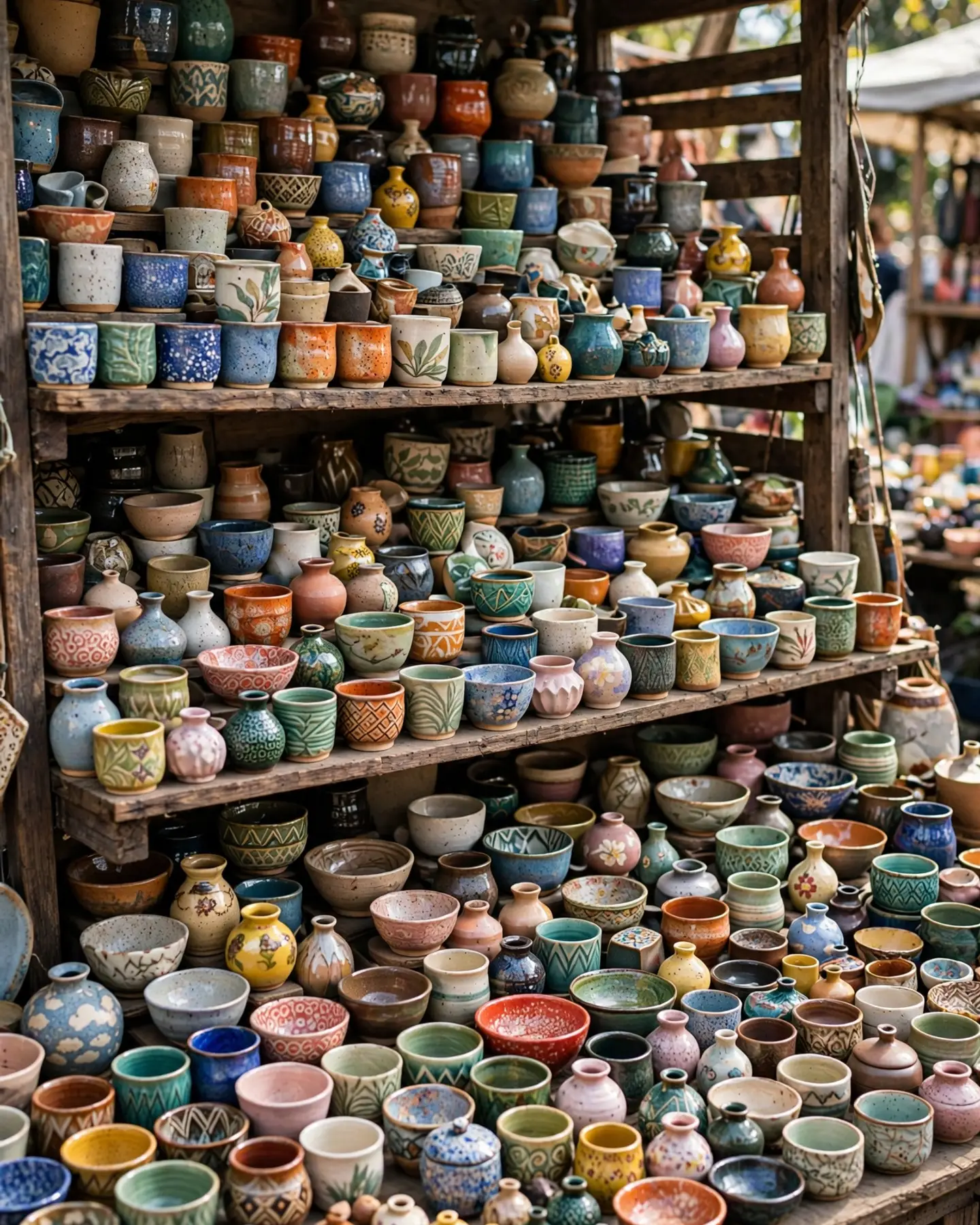
Small, repeated objects (jars on a shelf, beads, text on labels) are where AI video most often goes wrong: edges wobble, shapes melt into each other, lettering turns to nonsense. Crop in on one item, or use a slideshow instead.
Checklist: is this photo ready to animate?
- [ ] One main subject, not cut off at the edges
- [ ] Something that would move in real life (liquid, steam, fabric, hair, leaves, water, light)
- [ ] Sharp, well lit, at least as big as the clip you want
- [ ] No small text, logos or fine patterns you need to stay readable
- [ ] Nothing in it you don’t have the rights to (see the licensing section below)
If the photo is small or soft, enlarge it first with the free Quick Upscale 2× in the photo editor. If there’s something in the frame you don’t want moving around, brush it out with the free Magic eraser before you start.
How do you turn a photo into a video with AI, step by step?
- Pick the right goal. Bring a photo to life is the general one. If the photo is a product, a garment or a dish, the matching goal (Product video, Fashion video, Food & menu video) is built for that kind of shot.
- Prepare the photo with the checklist above. Clean it up in the editor first; it’s free.
- Plan one motion, not five. Decide what should move and what must stay still before you start. Write it down in one line: “steam rises from the mug, snow falls outside, the camera slowly moves closer; the mug and table stay still.”
- Choose the length. Start with 6 seconds. It’s the cheapest, it loops well on Reels and Stories, and it’s the quickest way to see whether the photo works before you spend more.
- Generate and watch it twice. Once for the motion, once for the details: hands, edges, any text. If something warps, change the photo (crop tighter, simplify the background), not just the wording.
- Finish it for free. Open the clip in the free video editor to trim it, add a headline and music, and download the size each platform wants.
How to describe the motion
When you describe a clip in words (the Describe it goal always works this way), the same three-part line works every time:
| Part | What to write | Example |
|---|---|---|
| What moves | One or two natural motions | “steam rises slowly, snow falls outside the window” |
| The camera | One slow move, or none | “slow push-in toward the mug” |
| What stays still | The things that must not change | “the mug, the candle and the table stay exactly as they are” |
Skip mood words like “cinematic” or “epic” on their own. They don’t say what moves, so the AI guesses. Speed words do help: “slowly”, “gently”, “a light breeze”.
How much does AI photo to video cost?
Every goal has a set length and a starting price. Longer clips cost more than the starting price shown here.
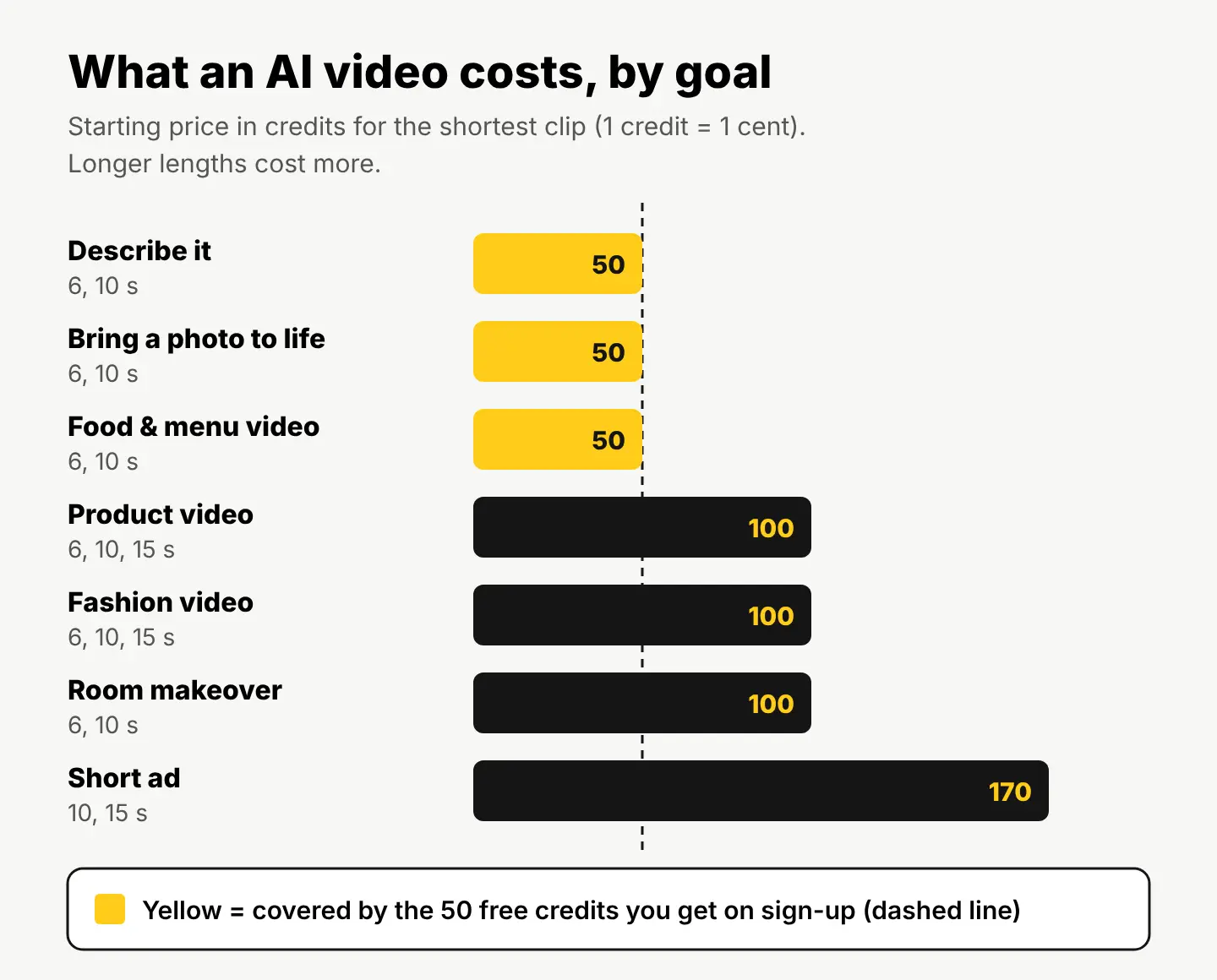
A few things worth knowing before you spend credits:
- Photo to video and Food & menu video start at 50 credits, so they’re the ones your sign-up credits cover.
- Product, Fashion and Room makeover videos start at 100 credits. Product video is worth it when the product has to look exactly like itself from shot to shot.
- A Short ad starts at 170 credits and builds the hook, the product, the offer and your end card from one product photo.
- Text, music and logo stay free to change after the clip is made, so you don’t pay again to fix a typo.
Can you use AI photo to video clips in ads and posts?
Usually yes, but two things decide it: the photo you started from, and the platform’s rules.
- The starting photo. Animating a photo doesn’t give you new rights to it. A licensed stock photo from our catalog keeps its license when you edit it, and our license page covers ads, social posts and products. A photo you found online is still someone else’s photo after it moves.
- People. Don’t animate a photo of a real person without their permission, and never make it look like they did or said something they didn’t.
- AI labels. Platforms ask creators to label realistic AI-made video. TikTok, for example, has required a label on realistic AI-generated content since 2023, as Tubefilter reported. Turning on the AI label when you post costs you nothing and keeps the post safe.
- Copyright. AI images and clips can be used commercially on our plans, but they come with no legal protection and may not be copyrightable in many countries.
How to finish your clip for Reels, TikTok and Stories
AI video gives you the moving part. The free video editor turns it into a post:
- Drop the clip on the timeline, and add a product photo or two after it if you like.
- Trim it so the first second already shows motion. Viewers scroll past a still start.
- Add a short headline with the Text tool, and music.
- Download the MP4 at 9:16 for Reels, TikTok and Stories, 4:5 for the feed, 1:1 or 16:9 elsewhere.
The editor runs in your browser on a laptop or desktop, your clips are never uploaded, and the download has no watermark.
Your next step: pick one photo you already have, run it through the checklist above, and try it in Bring a photo to life with your 50 sign-up credits. If you want more ideas for still images first, our guide to AI image prompts that work uses the same “say what you want to see” approach.
Questions people ask
- How long can an AI video made from a photo be?
- Bring a photo to life makes 6- or 10-second clips. Product and Fashion videos go up to 15 seconds. For something longer, join several clips in the free video editor.
- Can I turn an old family photo into a video?
- Yes. Repair it first with Photo restoration (2 credits a photo), since scratches and cracks can move with the scene, then bring the restored photo to life.
- Does the AI video keep my photo exactly as it is?
- The AI starts from your photo, but anything that moves is redrawn as it goes, so fine details can change. Keep text, logos and small patterns out of the parts you want to move.
- Can I make a video without any photo at all?
- Yes. Describe it makes a 6- or 10-second clip from a written description, from 50 credits. Or make a still with Create for 1 credit first and bring that to life.
Keep reading
 AI image generationBest AI image generator: how to pick one with 4 real testsThe best AI image generator follows your prompt, leaves room for text and has a license you can use. Four quick tests, with real results and prompts.
 AI image generationAI product photography: turn one phone photo into a full setKeep your real product, let AI change the scene. The workflow, a real candle photo placed in two scenes with the exact prompts, and marketplace rules.
 AI image generationImage to image AI generator: how it works, with a real exampleAn image to image AI generator turns a photo you have into a new version. See one room edited twice, the exact prompts, and when to use each method.