AI background generator: prompts and steps for backdrops
Describe a scene, leave the middle empty, and get a backdrop for 1 credit. Two real examples with exact prompts, plus how to put your product on it.
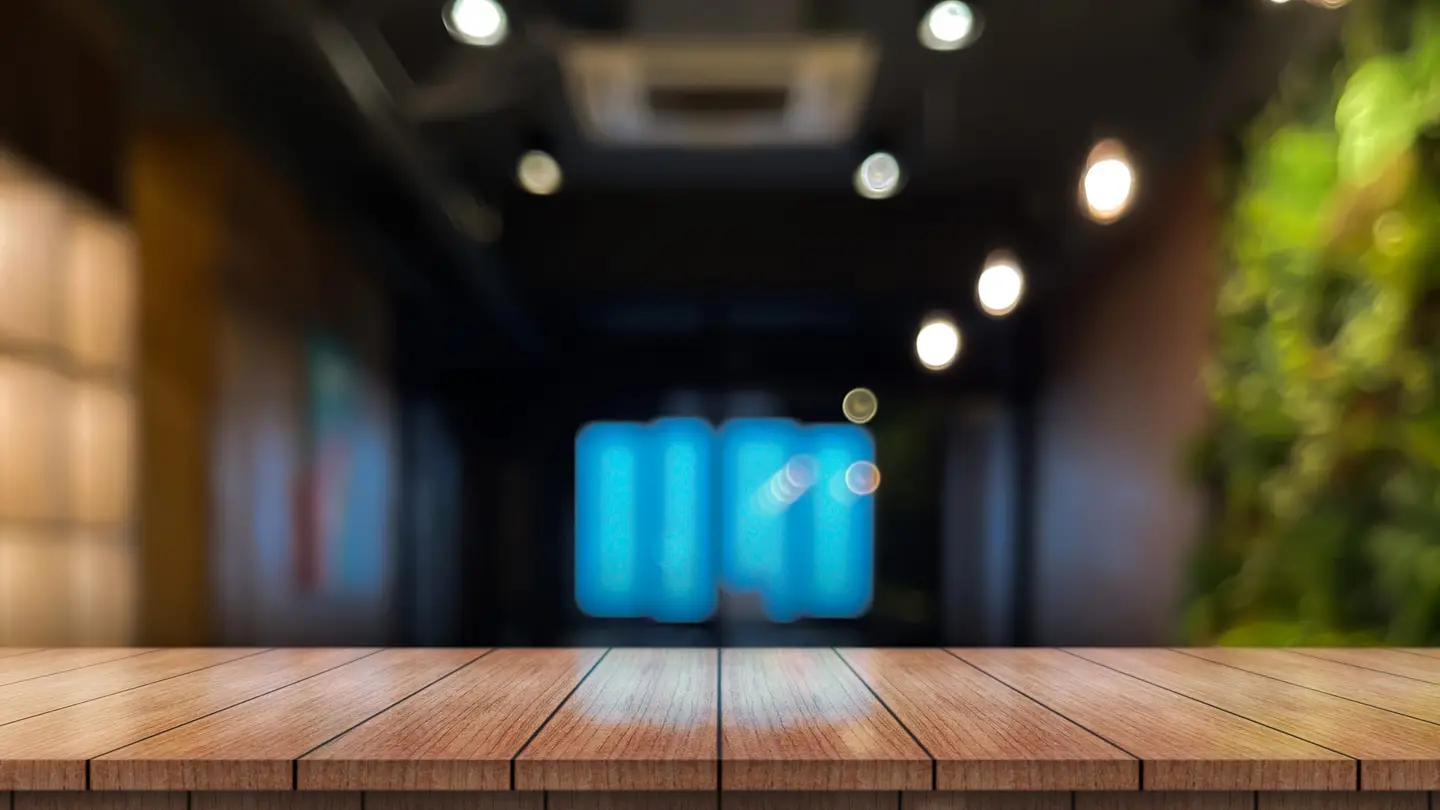
An AI background generator makes an empty scene from a short description: a countertop for product shots, a festive backdrop with room for a headline, a tidy room for video calls. In StockUnlimited you write the description in Create, get the backdrop for 1 credit (1 cent), and then put your product or text on it.
Below are two backdrops we generated for this article, each shown with its exact prompt, a five-part recipe that works for any background, and the steps to put a real product photo on top so it looks like one picture.
What is an AI background generator?
It’s an image generator aimed at one job: the setting, without the subject. You describe the surface, the light and the mood, and you leave the middle empty on purpose, because something else goes there later: a product cutout, a portrait, a sale headline.
That’s different from changing the background of a photo you already have. If you want to swap the wall behind an existing shot, our guide on how to change the background of a photo compares three ways. This article is about making the backdrop itself, so you have a scene to use again and again.
How do you write a prompt for an AI background?
Most backdrop prompts fail in one of two ways. The generator puts something in the middle (a vase, a cup, a plant), or the background is so busy that nothing on top of it stands out. A five-part recipe fixes both.
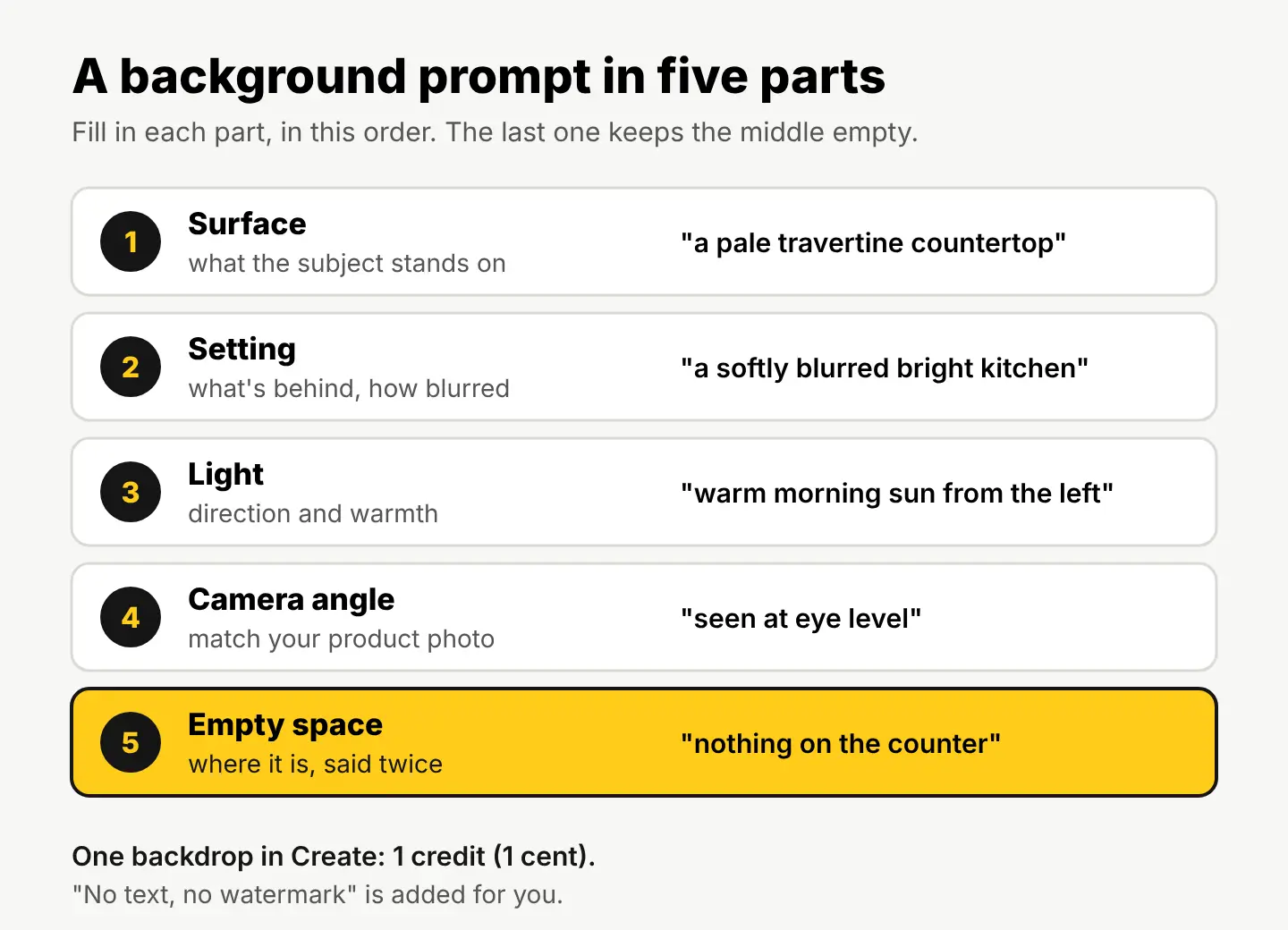
- Surface. What the subject will stand on: travertine counter, light oak table, rolled paper, sand.
- Setting. What’s behind it, and how blurred: “a softly blurred bright kitchen” reads as depth without stealing attention.
- Light. Where it comes from and how warm it is: “warm morning sun from the left.” Write this down, because your product photo has to match it later.
- Camera angle. Eye level for bottles and boxes, straight down for flat lays, straight on for banners.
- Empty space. Say where it is and repeat that it’s empty: “nothing on the counter, plenty of empty space in the center.”
Our generator adds “no text, no watermark” to every prompt for you, so you don’t need to. For general prompt wording, see how to write AI image prompts that get what you want.
Two AI backgrounds we made, with the exact prompts
Both images were made with AI in Create, 1 credit each. Neither is a photo.
A product backdrop for a shop listing
A photoreal empty product photography surface: a pale travertine stone countertop seen at eye level, the front edge of the counter in sharp focus, behind it a softly blurred bright kitchen with a window and green leaves, warm morning sunlight from the left casting soft shadows, nothing on the counter, plenty of empty space in the center

This is the kind of backdrop you’d put a candle, a bottle or a jar on. The counter is sharp and empty, the kitchen behind it is soft, and the light clearly comes from one side, which makes the next step (matching your product’s light) much easier. We asked for a square image because most shop grids crop to square; Shopify, for example, says square product images at 2048 × 2048 px usually display best (Shopify Help Center: product media types).
A holiday backdrop with room for a headline
A festive holiday background photo, smooth deep green, with evergreen pine branches and small red berries along the right edge, soft warm golden bokeh lights scattered behind them, the left two thirds plain dark green and empty, shot straight on

With Black Friday and the holiday gift season a week or two away, this is the backdrop most shops need right now. The decoration stays on one edge and the rest is calm, dark and empty, so white or yellow text on the left will be easy to read. Add the words in the free photo editor with Text or WordArt, not in the prompt: AI generators are bad at spelling, and editable text lets you change “Gift sale” to “Last day” without making a new image.
How do you put your product on an AI background?
Generate the backdrop, then let Change background place the product on it and match the light. Here’s the full route, with what each step costs:
| Step | Tool | Cost |
|---|---|---|
| 1. Make the backdrop | Create | 1 credit |
| 2. Upload your product photo; the background is removed automatically | Change background | |
| 3. Pick your backdrop from the Library tab, then drag and resize the product | Change background | |
| 4. Blend, so light, color and shadows match the scene | Change background | 10 credits a blend |
| 5. Add text, crop, or upscale | The free photo editor | Free |
| 6. Export every platform size in one zip | Social media resizer | Free |
So a finished, blended product shot on your own backdrop costs 11 credits, or 11 cents. The backdrop can be reused for every product in the same range, so from the second product on it’s 10 credits each.
Two tips that make the blend look real:
- Shoot the product in light like the backdrop’s. If the backdrop has warm sun from the left, photograph your product near a window on its left. The blend adjusts light and shadows, but it can’t invent a highlight on the wrong side.
- Match the angle. An eye-level backdrop needs an eye-level product photo. A bottle shot from above, placed on an eye-level counter, will always look pasted.
If you’d rather not make a backdrop at all, Product Studio turns one phone photo into 4 shots in any of 33 ready-made scenes for 10 credits. It’s quicker; a generated backdrop gives you a scene nobody else has.
Should you use an AI background or a stock backdrop?
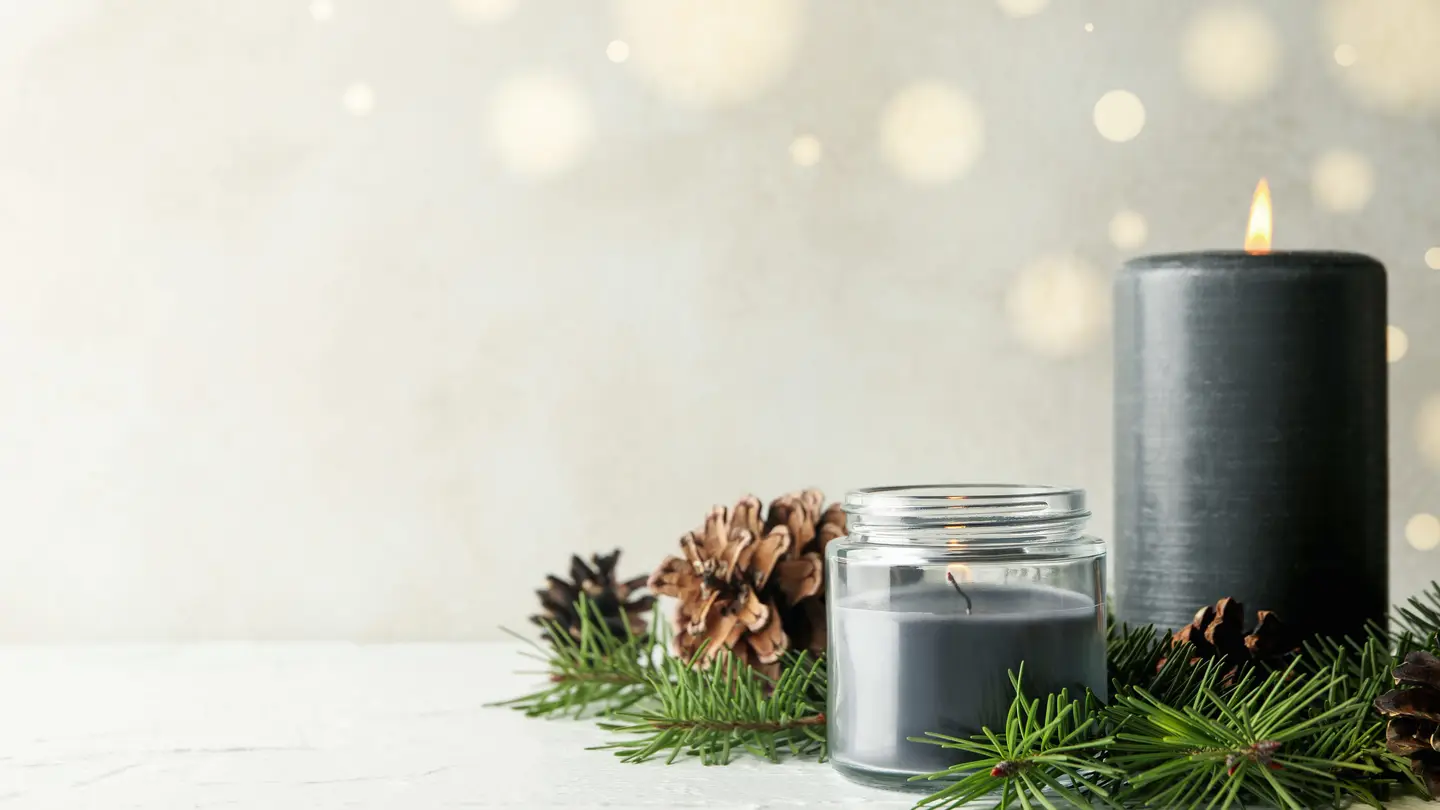
Both work, and they’re good at different things. Our catalog has plenty of empty-tabletop photos like the cover of this article: a real photo of a wooden table in front of a blurred room.
| AI background (Create) | Stock backdrop | |
|---|---|---|
| Cost | 1 credit (1 cent) | 10 credits ($0.10) |
| What you get | Exactly the scene you describe | A real photo, shot by a photographer |
| Commercial use | Allowed | Allowed: ads, social, products |
| Legal protection | None | Up to $5,000 for claims about the photo itself |
| Best for | Specific colors, seasons, brand moods, scenes stock doesn’t have | Real places, ads where you want the photo covered |
AI images may not be copyrightable in many countries, so a competitor could use a similar one. If that matters for a big campaign, a licensed stock backdrop is the safer choice. The details are on our license page.
Can you make a video call background with AI?
Yes. The same recipe works: describe a room, keep the area behind your head calm, and ask for a wide image. For example: “a calm home office seen straight on at seated eye level, a light oak bookshelf with a few books and a trailing plant, a cream wall, soft daylight from a window on the right, gently out of focus, the center left open and uncluttered.” Choose a wide 16:9 shape, and check your video app’s help pages for the size it wants.
If you’d rather not keep the image, turn on Private mode in Create: the image stays in your browser and nothing is saved to your account or our servers.
Your next step
Write down the one backdrop you’d use most this season, a counter for your product or a holiday banner for your offer, and fill in the five parts: surface, setting, light, angle, empty space. Then make it in Create. You get 50 free credits when you sign up, no card needed, then 3 free credits every day, so your first backdrops cost nothing.
Questions people ask
- Can I use an AI-generated background commercially?
- Yes, images made in Create can be used commercially. They come with no legal protection, and they may not be copyrightable in many countries.
- Why does the generator keep putting objects in my empty scene?
- Generators fill space unless told not to. Say where the empty area is and repeat it, for example "nothing on the counter, plenty of empty space in the center."
- How do I get a bigger background for print?
- Run the finished image through the HD Upscaler, up to 4x and 4K, for 1 credit an image.
- Can I steer the look with a photo of my own shop?
- Yes. Create accepts optional reference images to steer the look, so a photo of your counter or shelves helps the backdrop match your brand.
Keep reading
 AI image generationPhoto to video AI free: how to turn one photo into a clipYour sign-up credits cover a free 6-second AI clip. Which photos animate well (2 examples), how to plan the motion, real costs, and a free finish.
 AI image generationBest AI image generator: how to pick one with 4 real testsThe best AI image generator follows your prompt, leaves room for text and has a license you can use. Four quick tests, with real results and prompts.
 AI image generationAI product photography: turn one phone photo into a full setKeep your real product, let AI change the scene. The workflow, a real candle photo placed in two scenes with the exact prompts, and marketplace rules.